
Scheduling & assigning caregivers
The Scheduling board is where you plan each day: give visits a caregiver, move them, change their length, create new ones, or assign many at once on the map.
More room for the board
Click the panel icon next to the page title to collapse the side menu. The board, and especially the date header, is much easier to read that way.
At a glance
| I want to… | How |
|---|---|
| Give a visit a caregiver | Click the visit, then drag a caregiver onto it in the timeline, or click the caregiver and the arrow |
| Use someone who is unavailable | Same, from the Unavailable group, then Assign anyway |
| Change the time | Drag the visit up or down in the timeline |
| Change the length | Drag the visit's bottom edge |
| Add a one-off visit | Drag over an empty part of the timeline |
| Assign many visits at once | Map › Select area › draw around the pins › caregiver › arrow |
The board
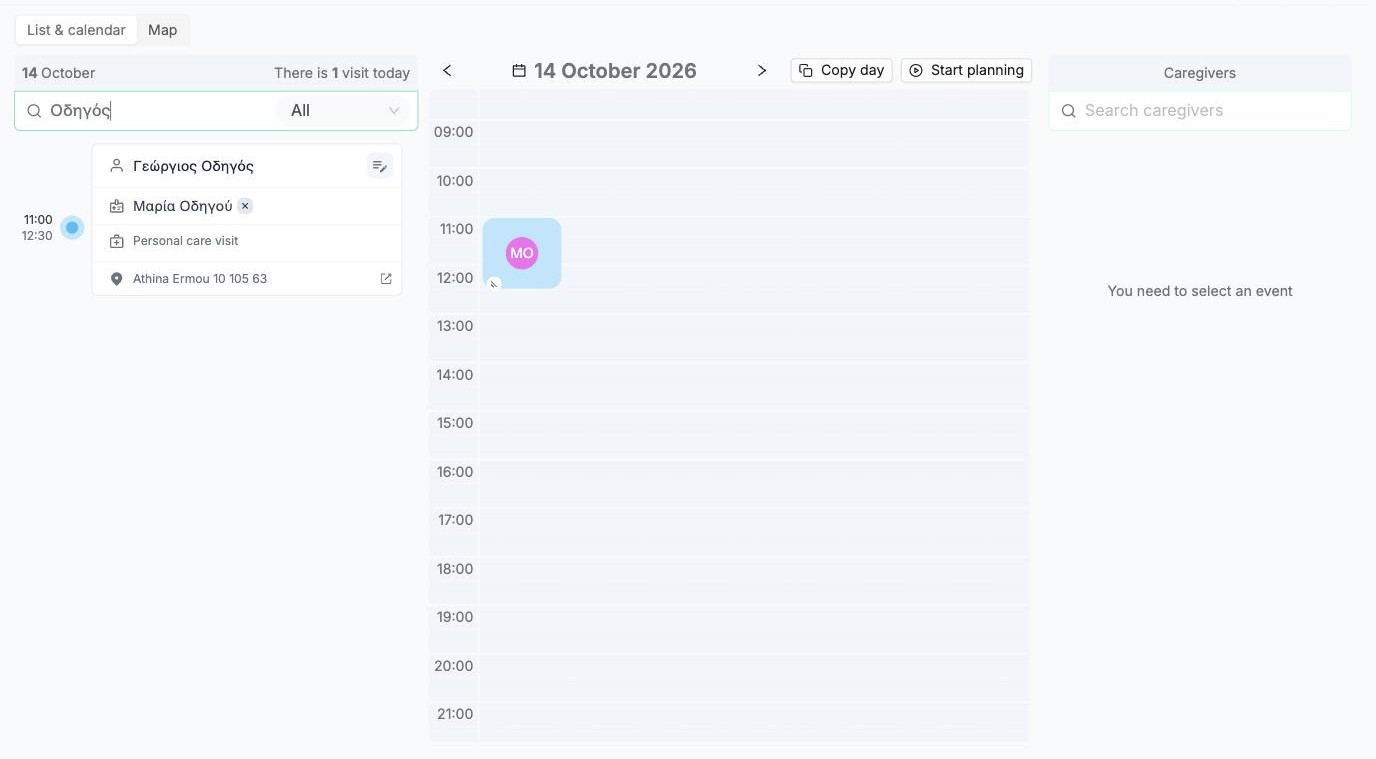
Open Scheduling in the side menu. List & calendar (the default view) has three columns:
- left: the day's visits as cards. Search visits finds a patient, and All filters by status.
- middle: the same visits on a timeline. Use the arrows or click the date to change day.
- right: Caregivers. It stays empty (You need to select an event) until you pick a visit.
Assign a caregiver
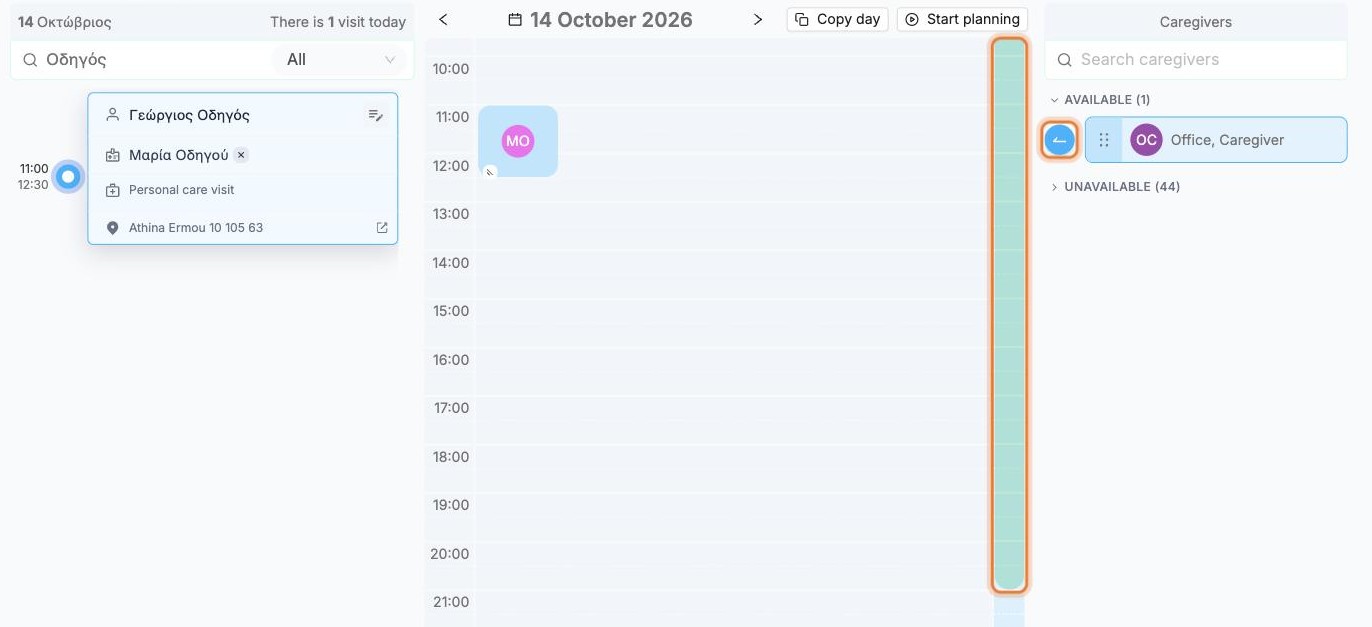
Click a visit (card or timeline). The right column now splits the caregivers into Available and Unavailable for that visit. Then do either:
- Drag a caregiver by the ⠿ handle and drop them on the visit in the middle timeline (dropping on the card doesn't work), or
- Click a caregiver, then click the round arrow button that appears to the left of their name.
When you select a caregiver, their working hours appear as a green bar on the right edge of the timeline, so you can check that the visit fits.
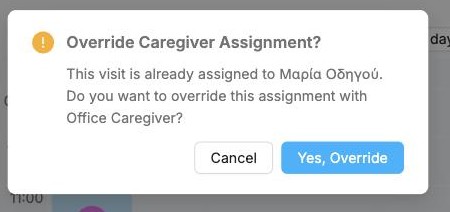
If the visit already has a caregiver, Alivio asks Override Caregiver Assignment? Click Yes, Override to replace them. To just remove a caregiver, click the × next to their name on the card.
Assign an unavailable caregiver
Sometimes you need to send someone who doesn't fit, for example a caregiver without the right service listed, or one who has no shift at that time.
Expand Unavailable in the right column. Each caregiver shows why in orange, for example Missing service, No work shift at this time, Busy with another patient, or on leave. Drag one onto the visit (or click and use the arrow).
Alivio warns Assign an unavailable caregiver? and repeats the reasons. Click Assign anyway to go ahead.
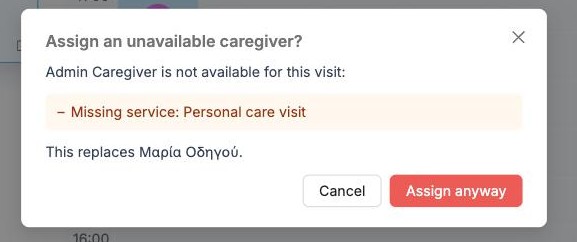
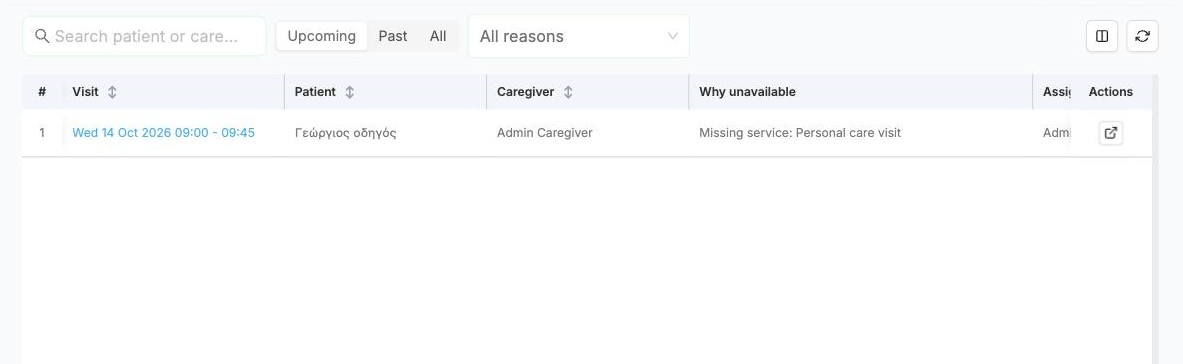
Every such assignment is recorded under Visits › Forced assignments, with the reason and who made it. Filter by Upcoming, Past or All, or by reason.
Move or resize a visit
On the middle timeline:
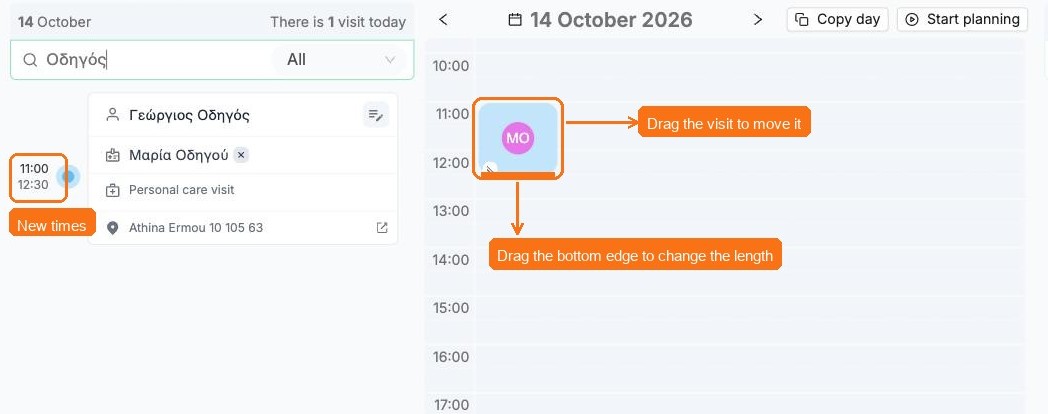
- move a visit by dragging it up or down to a new time
- change its length by dragging its bottom edge
Times snap to the quarter hour, and the new time is shown while you drag. The change is saved straight away, and the card on the left updates. If the new time doesn't suit the assigned caregiver, Alivio asks whether to keep them and notify them.
Double-click a visit to open its full edit window.
Create a visit from the timeline
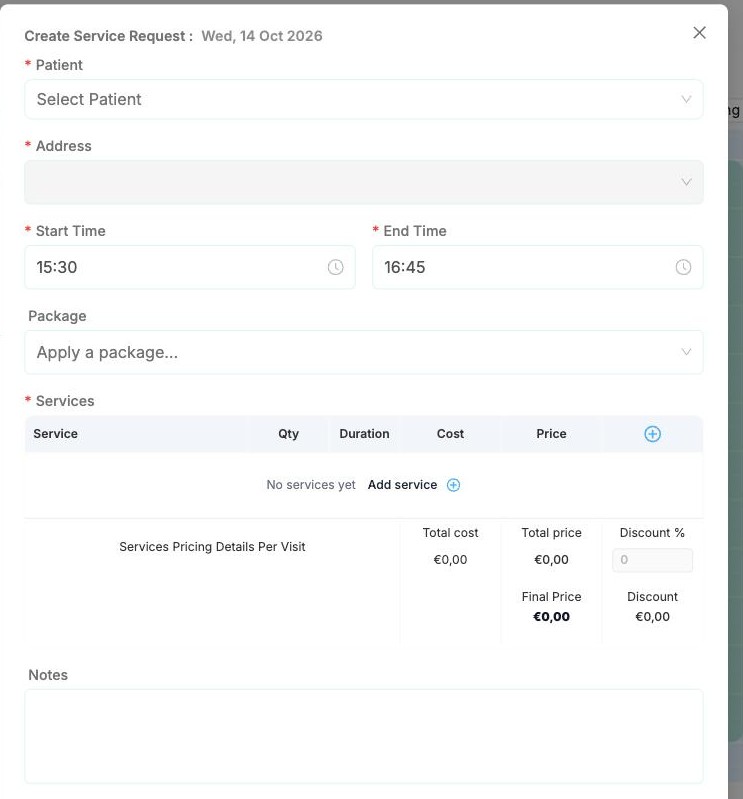
Click and drag down over an empty part of the timeline (or double-click an empty slot). Create Service Request opens with the Start Time and End Time already filled in.
Choose the Patient and Address, add Services (or Apply a package), optionally pick a Caregiver, and click Create Visit. This creates a one-off request with one visit. For repeating visits, use Creating visits.
Assign many visits on the map
Use the map when you want to give one caregiver several visits that are close to each other, for example a whole neighbourhood in one go.
Click Map at the top of the Scheduling page and pick the day. Each visit is a pin, coloured by caregiver: grey means Unassigned. Zoom in with + / −, the mouse wheel or a double-click.
Visits whose address has no map location are counted in visits not on map, and you assign those from List & calendar.
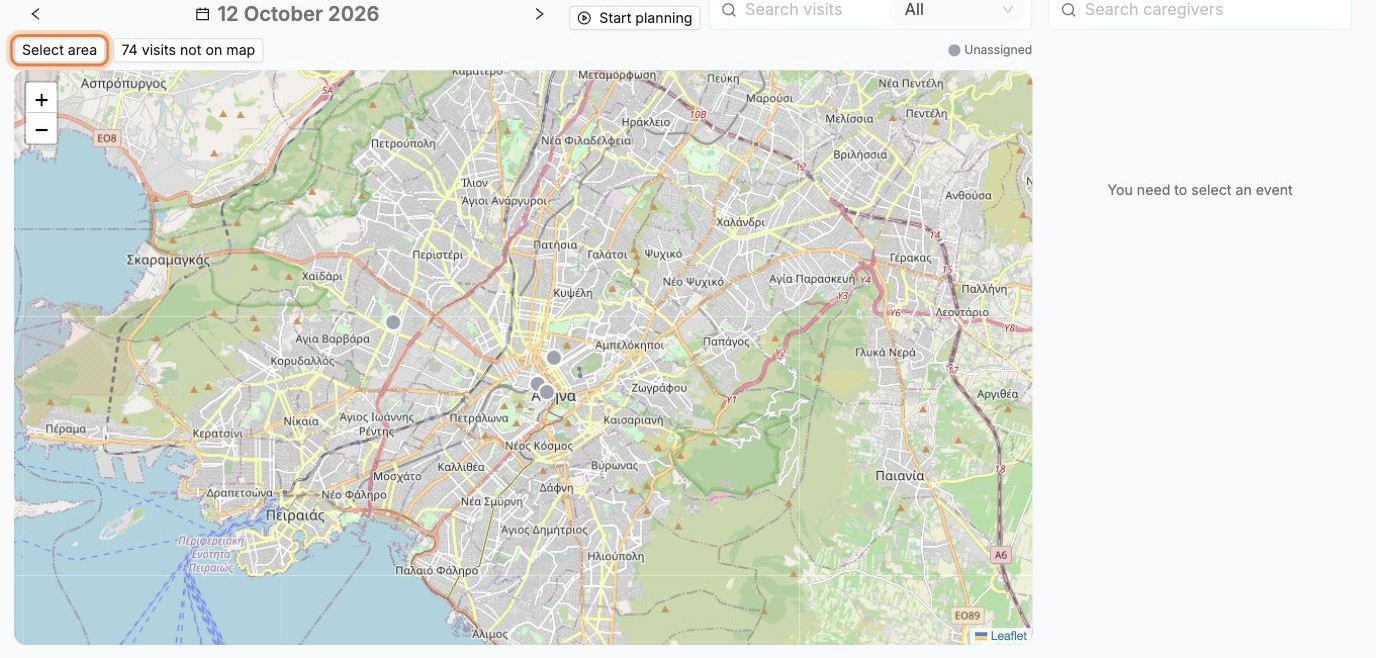
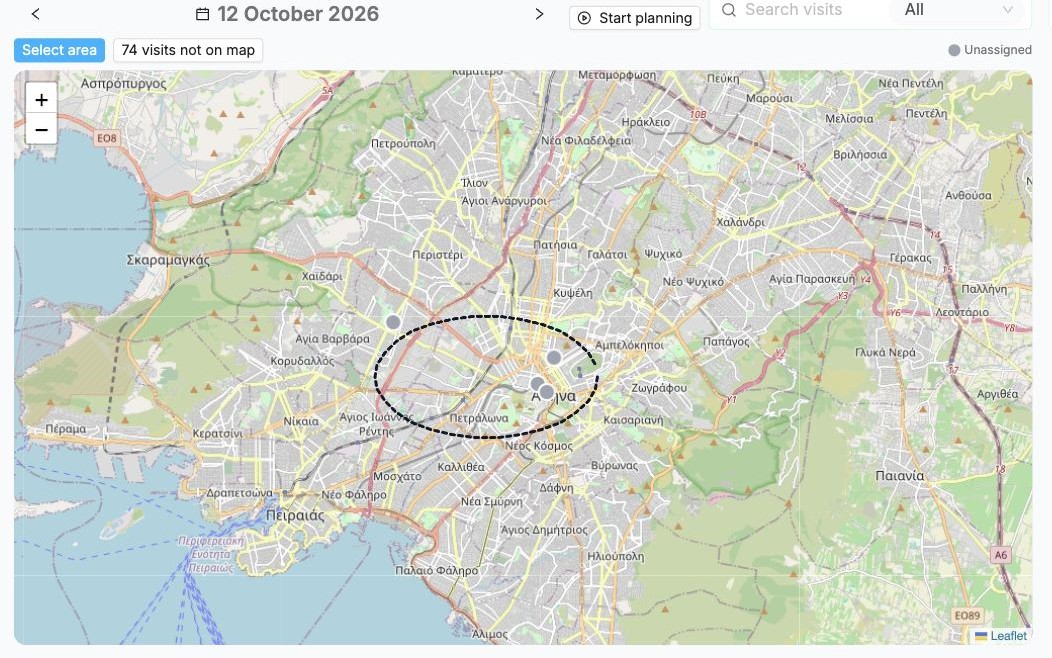
Select the visits. Click Select area: the button turns blue and the cursor becomes a crosshair. Hold the mouse button down and draw a loop around the pins you want, then let go. Every visit inside the loop is selected.
You can also click pins one by one to add or remove them, for example a pin just outside your loop. Press Esc to cancel drawing.
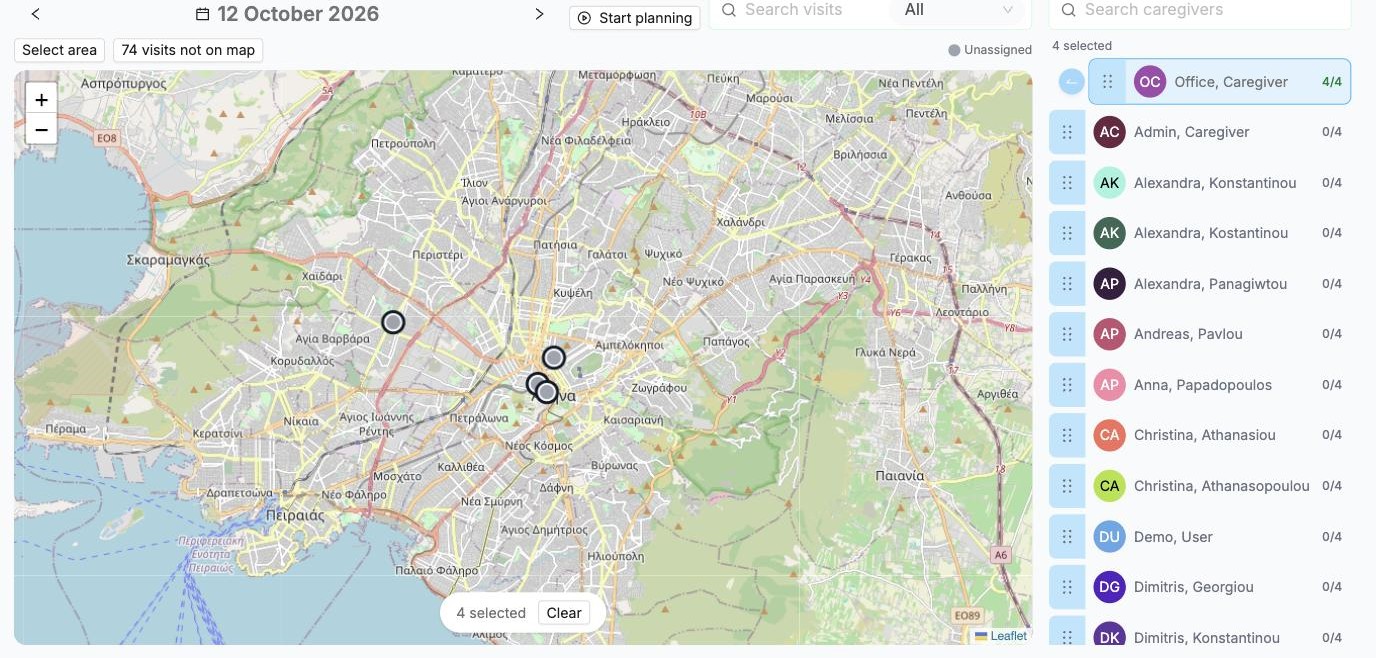
The selected pins get a dark ring, and the bar at the bottom shows how many are selected (Clear empties the selection).
The Caregivers column now shows, for each caregiver, how many of the selected visits they're free for: 4/4 means all of them, 0/4 none. Click a caregiver, then the round arrow button to the left of their name.
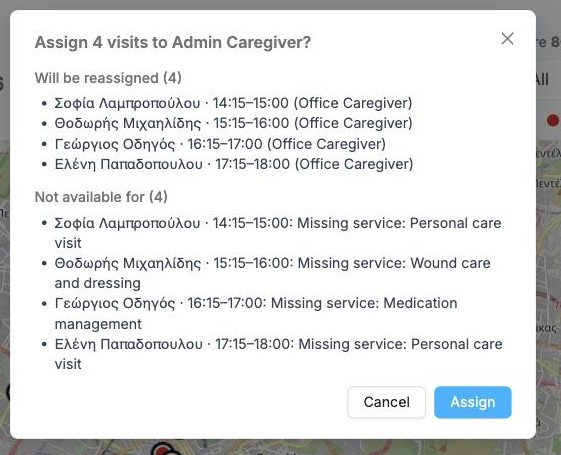
Before anything changes, Alivio shows a summary:
- Will be reassigned: visits that already had another caregiver
- Not available for: visits that don't fit this caregiver, and why (for example Missing service). These are recorded as forced assignments.
- Overlap each other: selected visits at the same time
If everything fits, you only see the question. Click Assign.
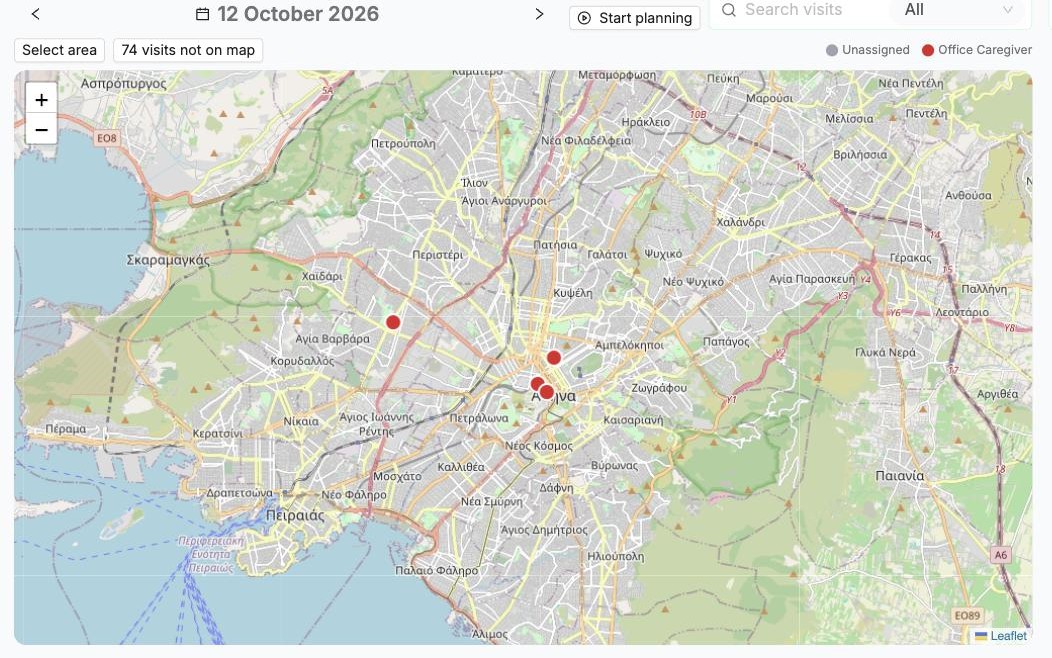
The pins change to the caregiver's colour, and a message confirms how many were assigned. Any that failed stay selected so you can try another caregiver.
Plan without notifying, then publish
Start planning at the top of the timeline opens a planning session. While it is open, caregivers aren't notified of each change. When you're done, click Publish now in the bar at the top: each caregiver gets one notification with all their changes. Stop without notifying ends the session quietly.