
Services & packages
Services are the things you do at a patient's home, each with a duration, a cost and a price. Packages bundle services together, optionally as a weekly schedule, and can have their own fixed price.
Service types
Every service belongs to a service type, a simple category such as nursing or physiotherapy. Manage them under Settings › Service Types before you add services.
Add a service
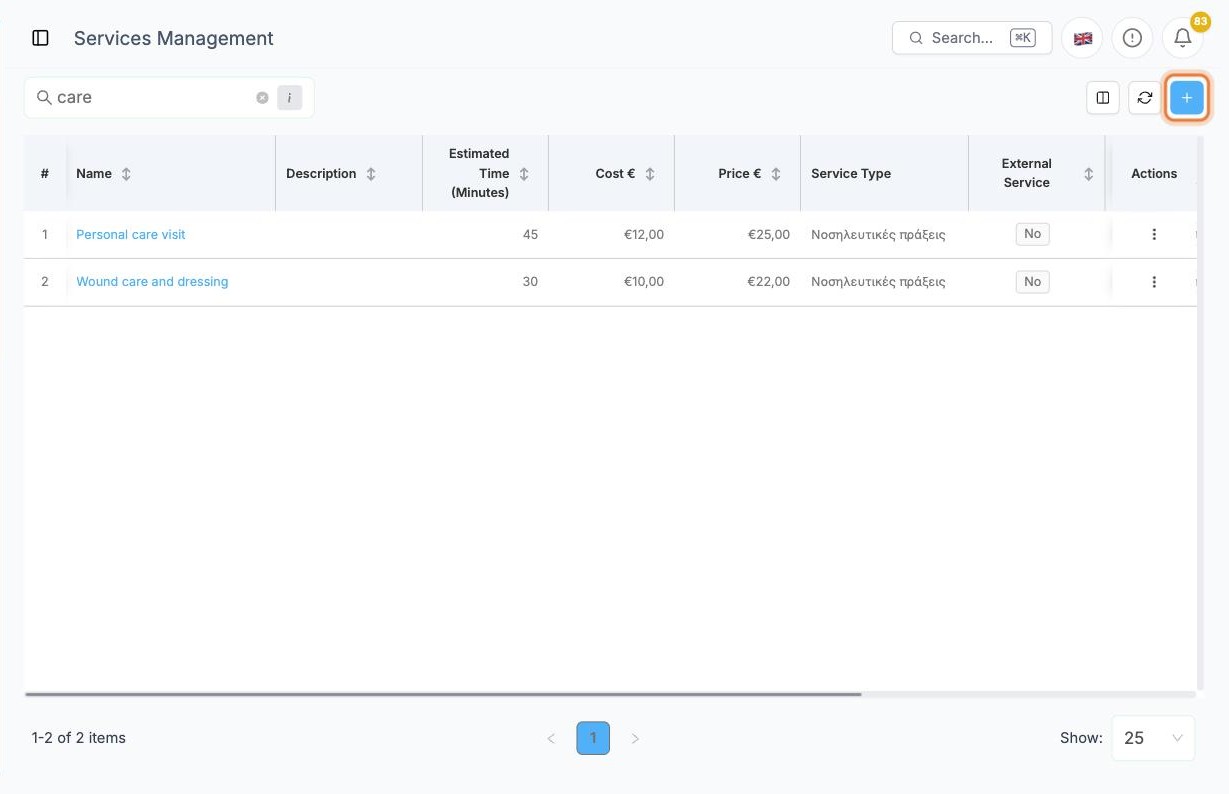
Open Settings › Services and click +.
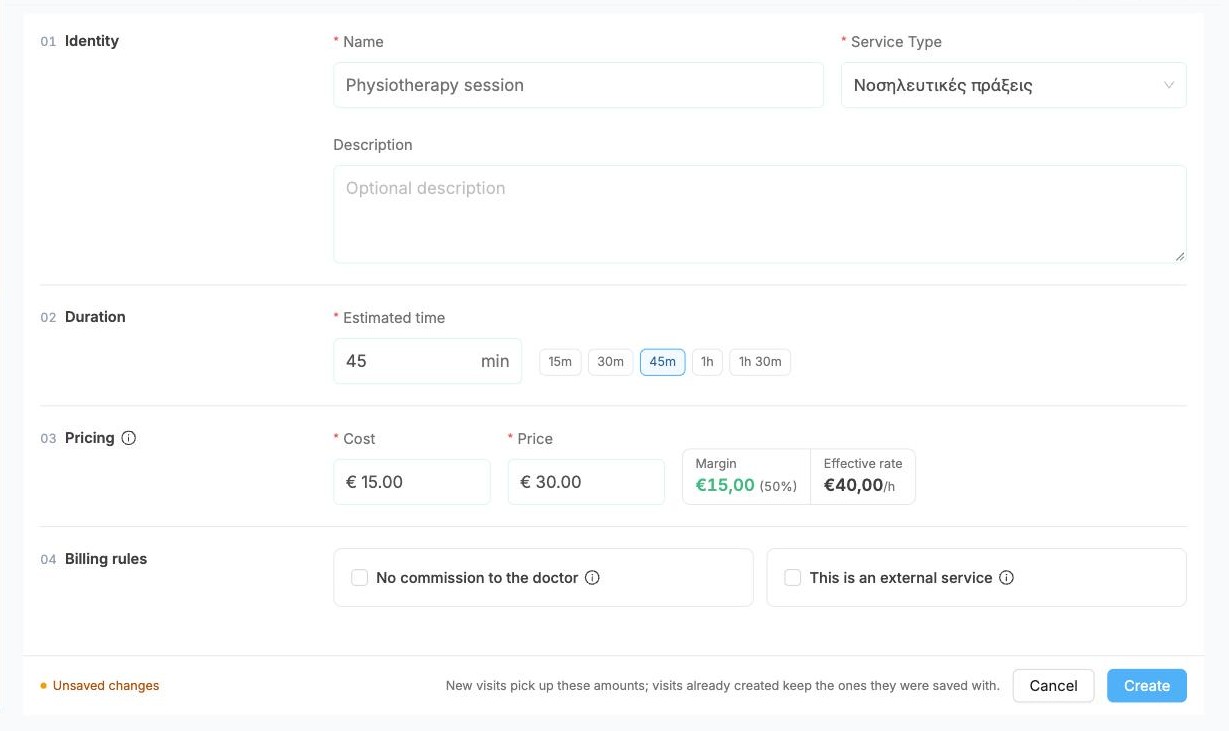
Fill in the four sections:
- Identity: the Name and its Service Type, plus an optional Description
- Duration: the Estimated time in minutes. The buttons (15m, 30m, 45m, 1h, 1h 30m) are shortcuts.
- Pricing: Cost is what the visit costs you (for example the caregiver's pay) and Price is what the patient pays. Alivio shows the Margin and the Effective rate per hour as you type.
- Billing rules: tick No commission to the doctor or This is an external service if they apply. Hover the i icons for details.
Click Create.
Changing prices later
New visits pick up a service's current amounts. Visits already created keep the amounts they were saved with, so a price change never rewrites past visits.
Packages
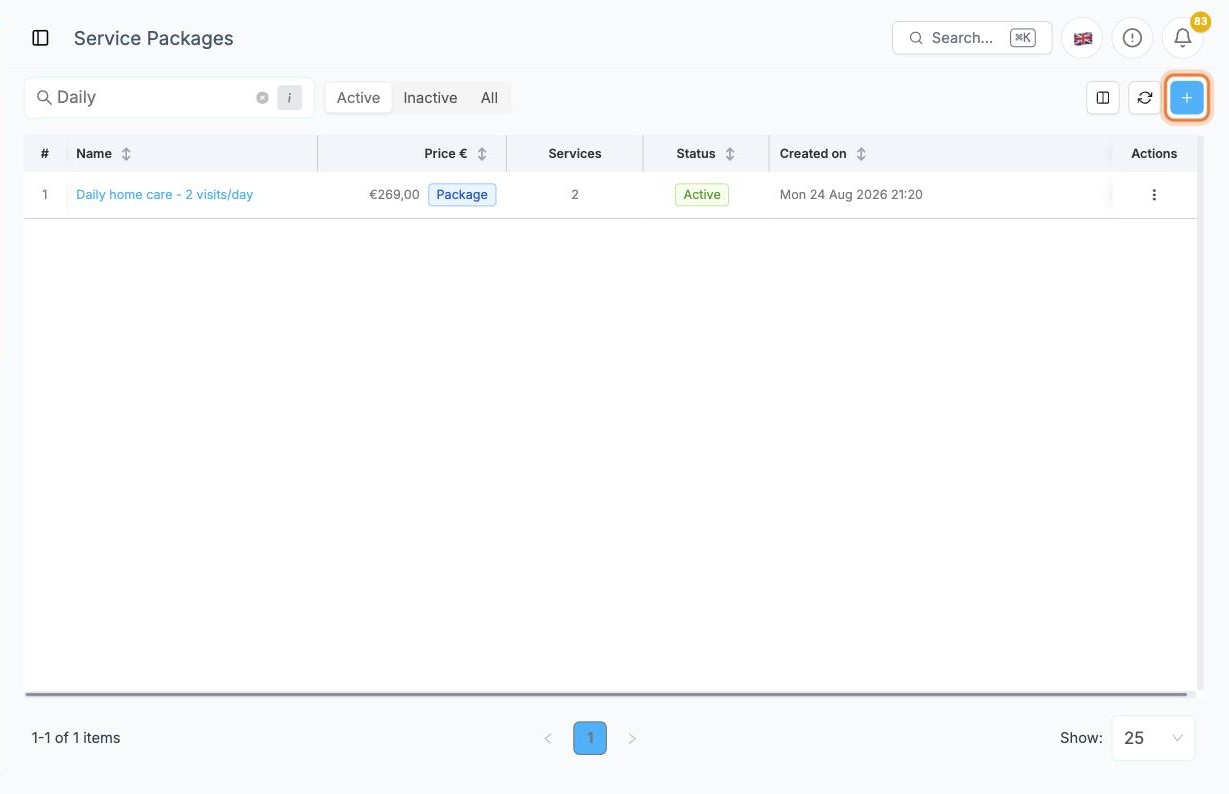
Open Settings › Service Packages. Use Active, Inactive and All above the list to filter, and click + to create a package, or a name to open one.
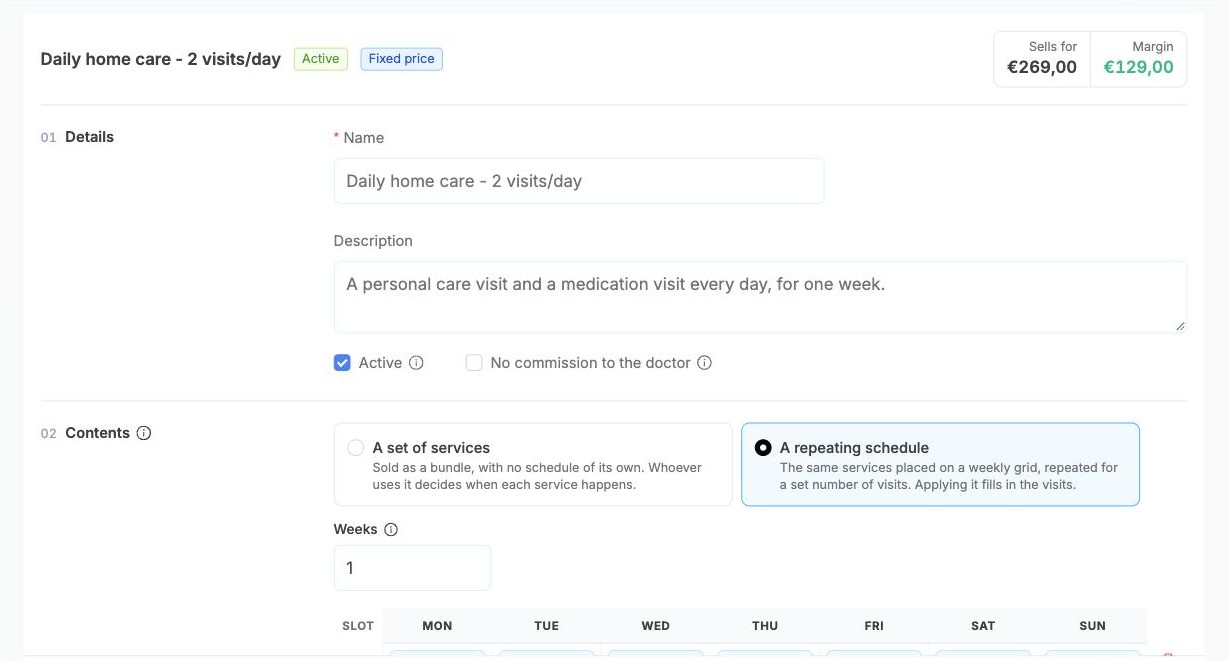
Under Details, give the package a Name and Description, and keep Active ticked so it can be sold.
Under Contents, choose what kind of package it is:
- A set of services: a bundle with no schedule of its own. Whoever uses it decides when each service happens.
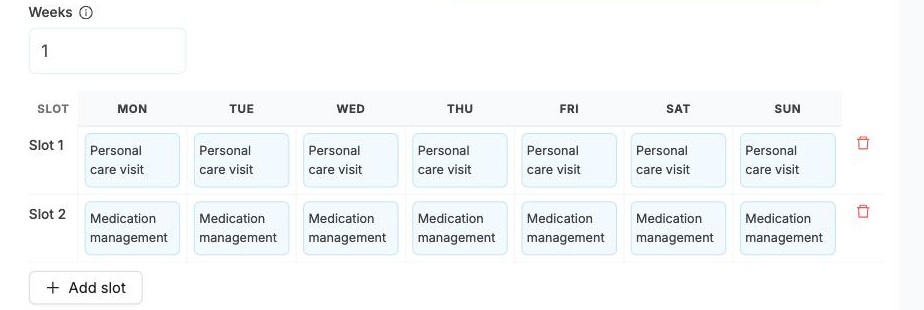
- A repeating schedule: the same services on a weekly grid, repeated for a number of Weeks. Using it fills in the visits automatically.
The box at the top right shows what the package Sells for and its Margin.
For a repeating schedule, each row (Slot) is one visit per day. Click a cell and pick the service for that day's visit. Add slot adds another visit per day, for example morning and evening.
Under Pricing, choose:
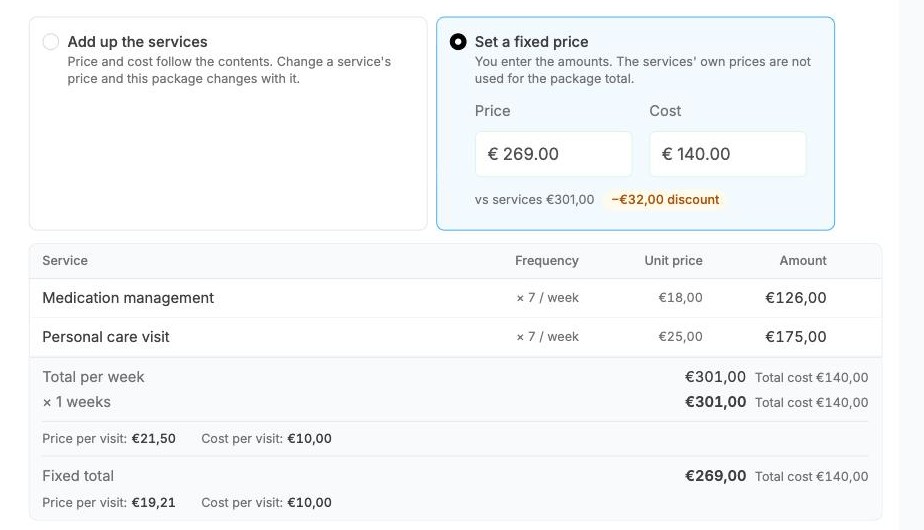
- Add up the services: the package price follows its services. Change a service's price and the package changes too.
- Set a fixed price: you enter the Price and Cost yourself. Alivio shows the difference against the services' own prices, for example a discount.
The table below breaks down each service, the Total per week, the Fixed total and the price per visit. Click Update (or Create for a new package).
Related
- Creating visits: where packages are used
- Caregivers: who can perform each service