
Billing
Alivio keeps the books for you. Charges and earnings are created automatically when a visit is completed: never when it is planned. This page follows one visit from completion to the money on the billing dashboard.
How it works
Visit completed  →  Patient charge   (what the patient owes)
                 →  Caregiver earning (what you owe the caregiver)
                 →  Balances and Billing Overview update
Payment recorded →  the balance goes down
Planned (scheduled) visits don't appear in billing at all. A visit is billed only once it is Completed: by the caregiver in the mobile app, or by the office as shown below.
1. Complete the visit
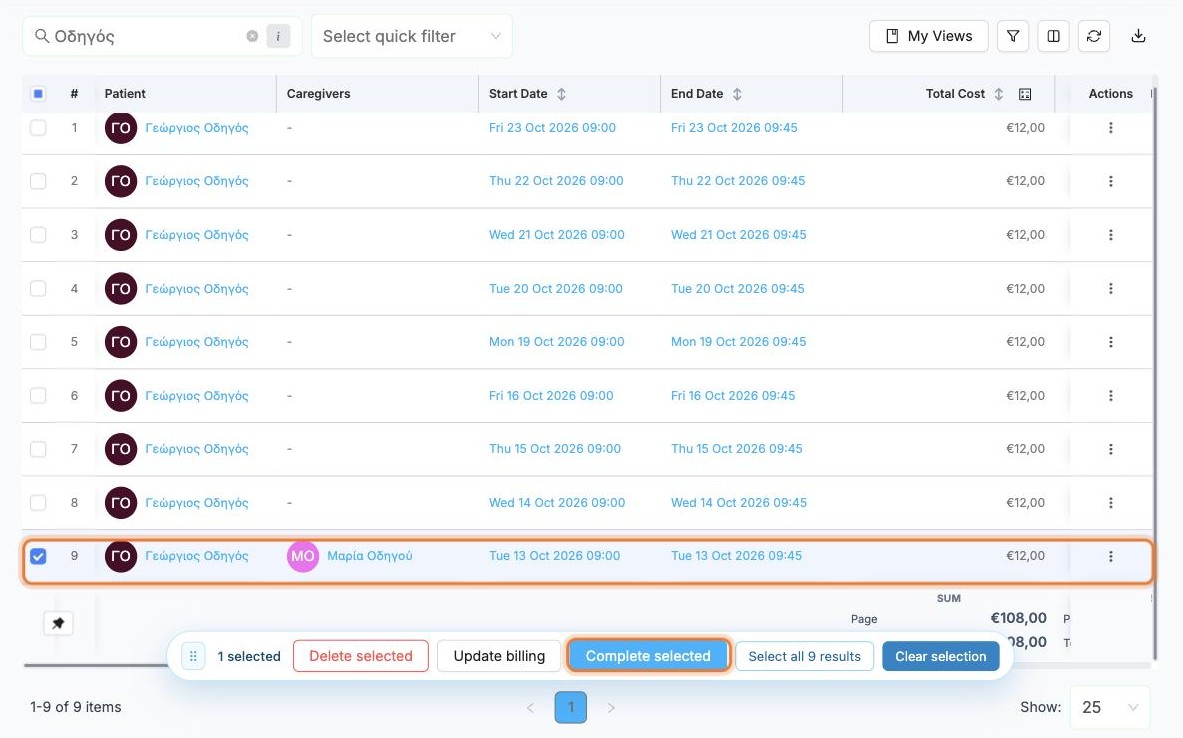
Open Visits › Visit List and find the visit (search for the patient). Tick the visit and click Complete selected in the bar at the bottom.
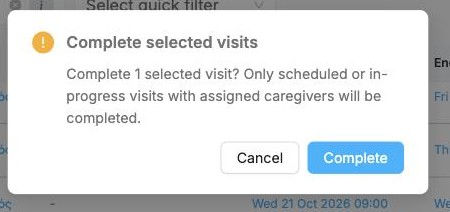
Confirm with Complete. Only scheduled or in-progress visits that have a caregiver assigned are completed. Others are skipped.
TIP
Caregivers normally complete their own visits from the mobile app at the end of each visit. Completing from the dashboard is for corrections or for visits recorded on paper.
2. See the new transactions
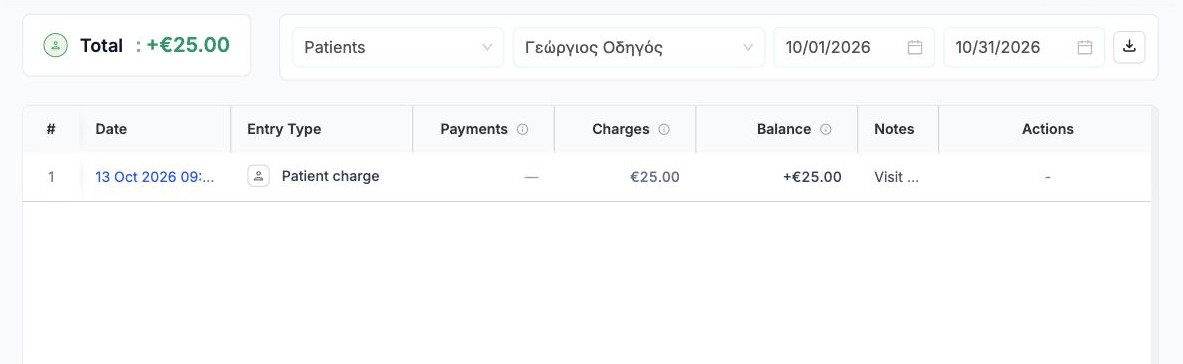
Open Billing › Ledgers, choose Patients and the patient, and set the dates to include the visit. A Patient charge appears for the visit's price, and the Total shows what the patient now owes.
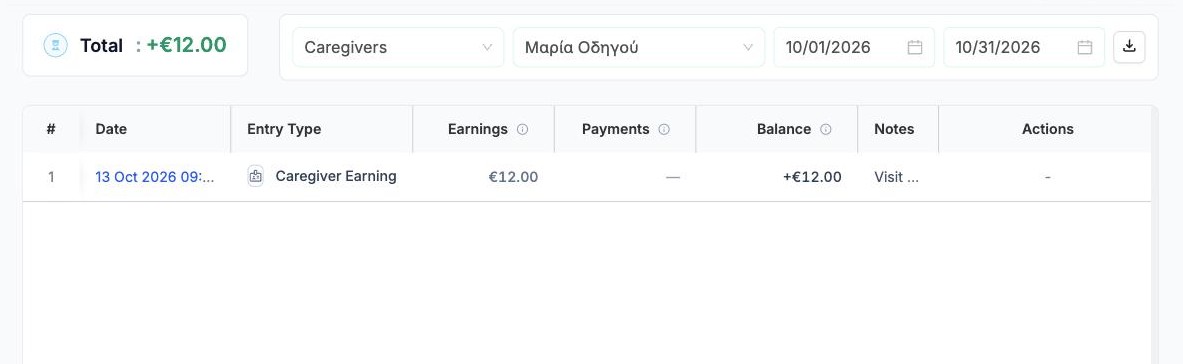
Switch the first box to Caregivers and pick the caregiver. The same visit created a Caregiver Earning for the visit's cost: what you owe them.
3. Balances
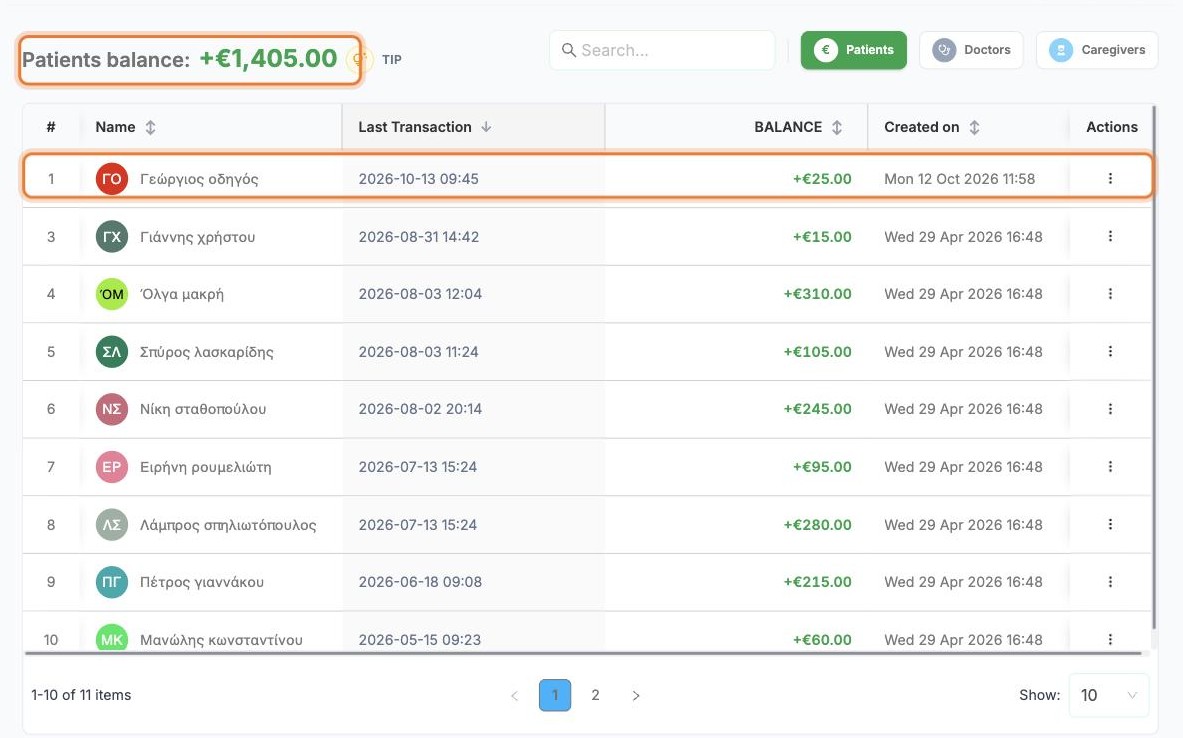
Billing › Balances lists everyone with an open balance. Switch between Patients, Doctors and Caregivers at the top right. The patient now appears with the new amount, and the Patients balance total has gone up by the same amount.
4. The billing dashboard
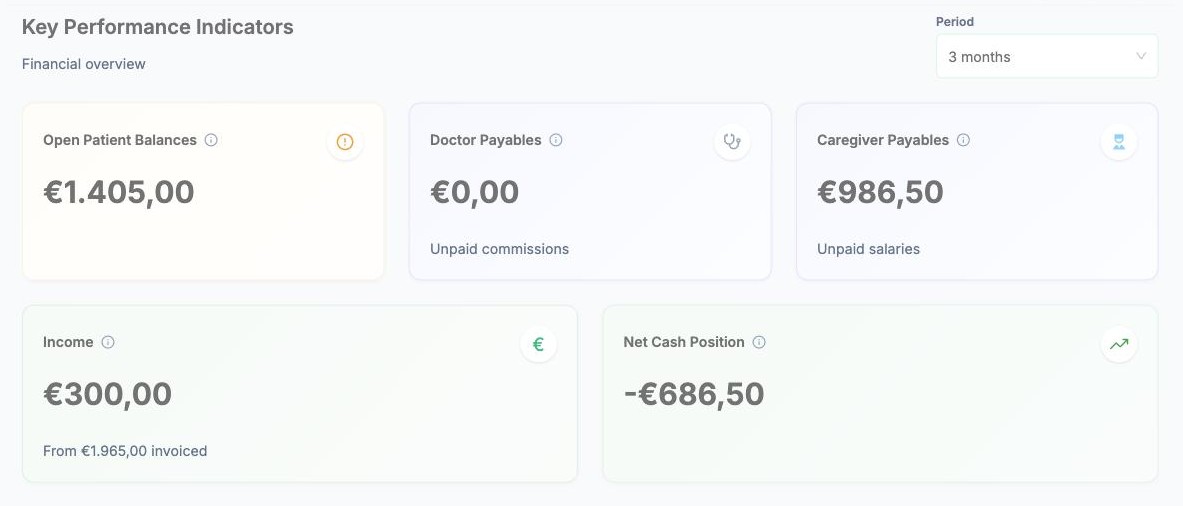
Billing › Overview sums everything up for the chosen Period:
- Open Patient Balances: what patients owe you
- Doctor Payables and Caregiver Payables: what you owe
- Income: payments received, compared with what was invoiced
- Net Cash Position: income minus what you owe
Further down are an income vs expenses chart and the patients and staff with the largest open balances.
5. Record a payment
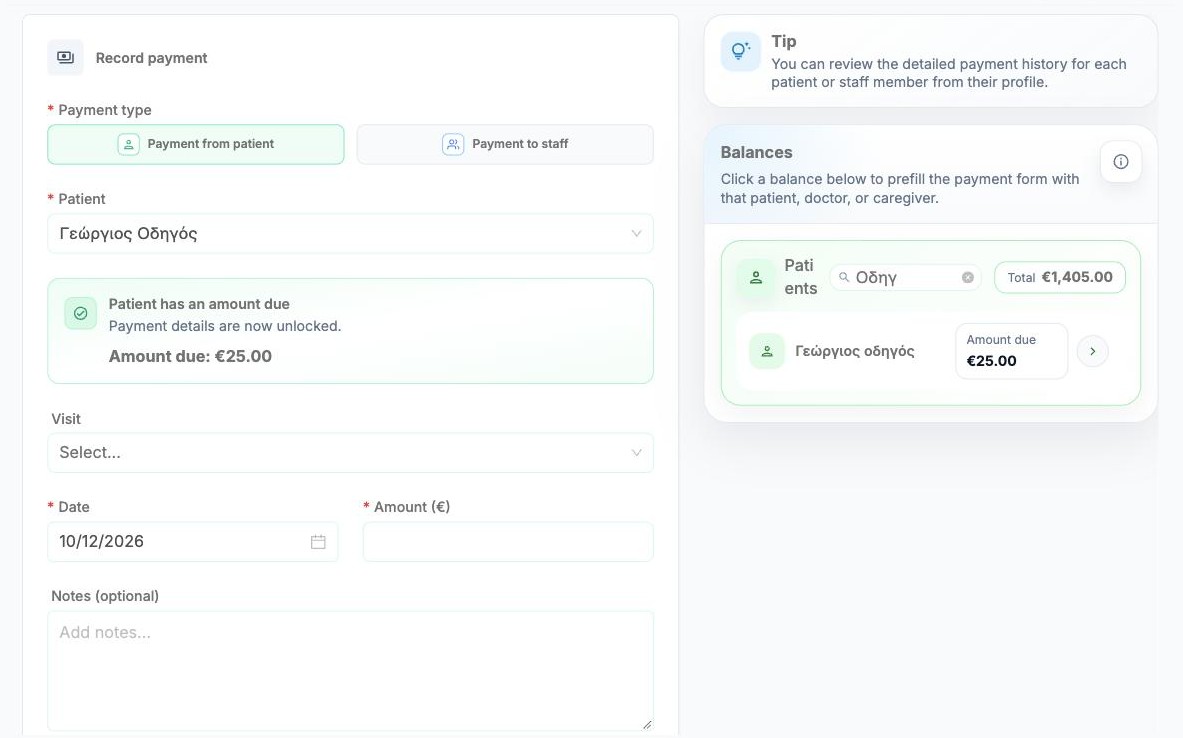
Open Billing › Payments. The quickest way is to click the patient in the Balances panel on the right: the form fills in for you and shows the Amount due.
Choose Payment from patient (money in) or Payment to staff (money out), check the Date, enter the Amount (€), optionally link a Visit and add Notes, and click Submit payment. The balance goes down by the amount paid.
WARNING
If Alivio says the person has no amount due or has already prepaid, you can still submit, but check the amount first.
Caregiver cash register
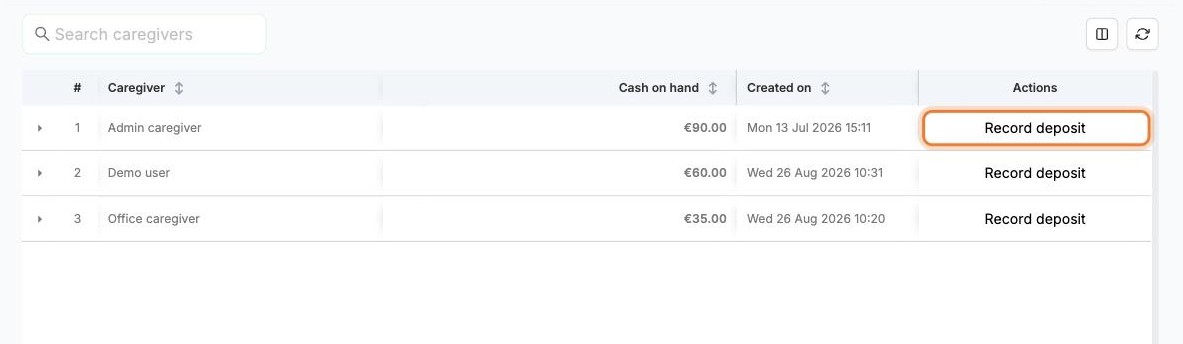
When caregivers collect cash from patients during visits, Billing › Caregiver Cash Register shows how much each one is holding (Cash on hand). Click the arrow at the start of a row to see every collection and deposit.
When a caregiver hands the cash over to the office, click Record deposit on their row.
Related
- Creating visits
- Assigning caregivers: only visits with a caregiver can be completed
- Working with lists