Shifts & availability
Tell Alivio when each caregiver works. Visits are matched against these shifts, so a caregiver without shifts looks unavailable.
The shifts week
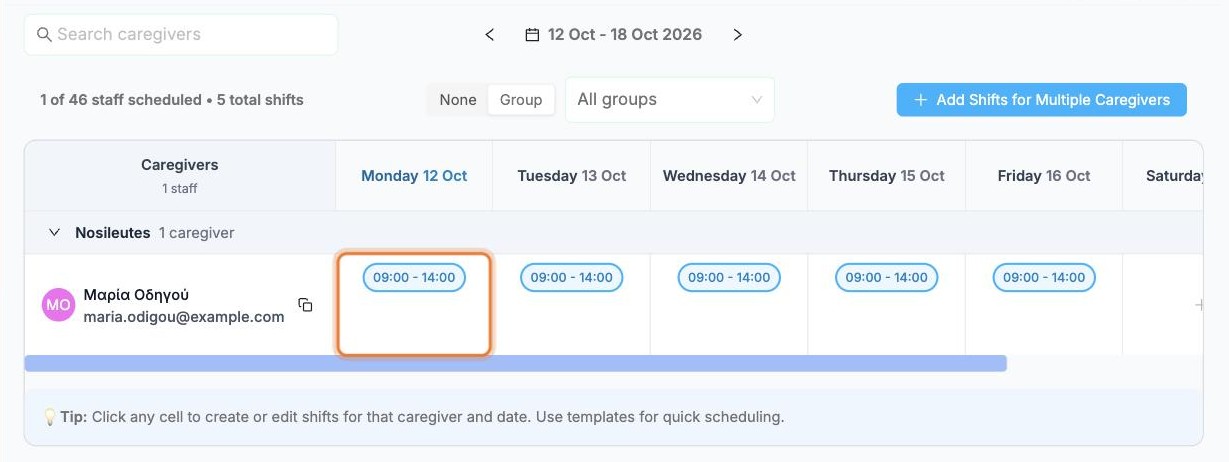
Open Team › Shifts. Each row is a caregiver and each column a day of the week. Use the arrows next to the dates to move between weeks, and Search caregivers to find someone.
Click an empty cell to add shifts for that caregiver and day. To change an existing shift, click the ⋮ next to it and choose Edit.
Set the hours
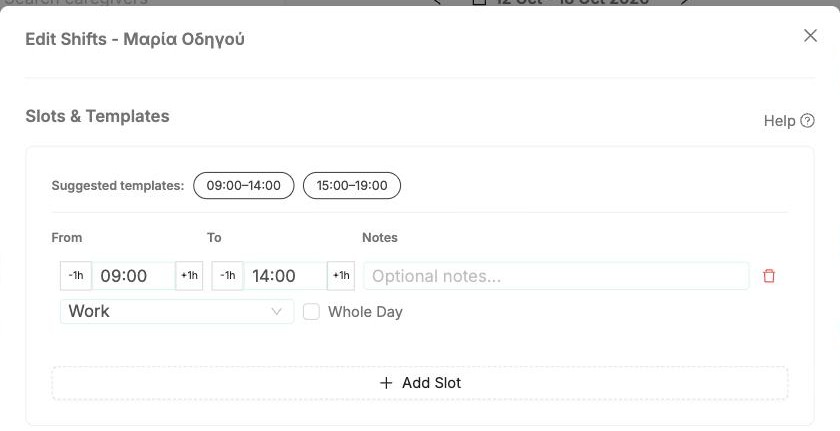
Under Slots & Templates, click a Suggested template such as 09:00–14:00, or click Add Slot and set From and To yourself. The -1h / +1h buttons nudge the times.
Add a second slot for a split shift, for example morning and evening.
Leave
The type next to each slot is Work by default. Choose Sick Leave, Annual Leave, Unpaid Leave or Other Leave to record time off instead. Tick Whole Day for a full day.
Repeat it
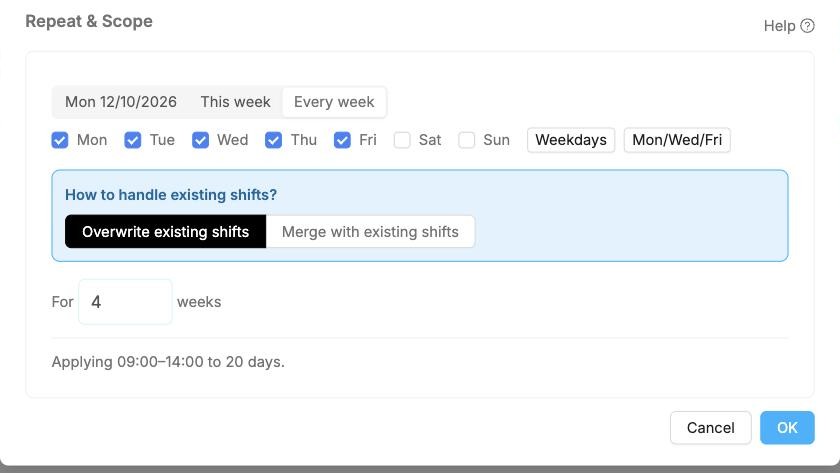
Under Repeat & Scope, choose how far the shift applies:
- the single day (for example Mon 12/10/2026)
- This week
- Every week: tick the days (Weekdays and Mon/Wed/Fri are shortcuts) and enter for how many weeks
If the caregiver already has shifts on those days, choose Overwrite existing shifts or Merge with existing shifts. The line at the bottom confirms what will happen, for example Applying 09:00–14:00 to 20 days. Click OK.
The new shifts appear in the week.
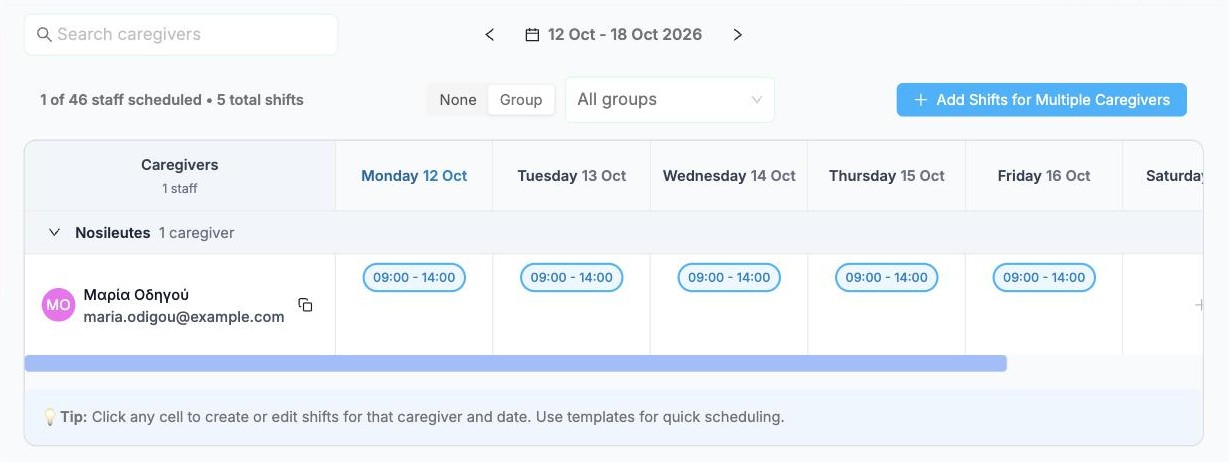
Several caregivers at once
Add Shifts for Multiple Caregivers applies the same shifts to a whole team in one go.
Check who is free
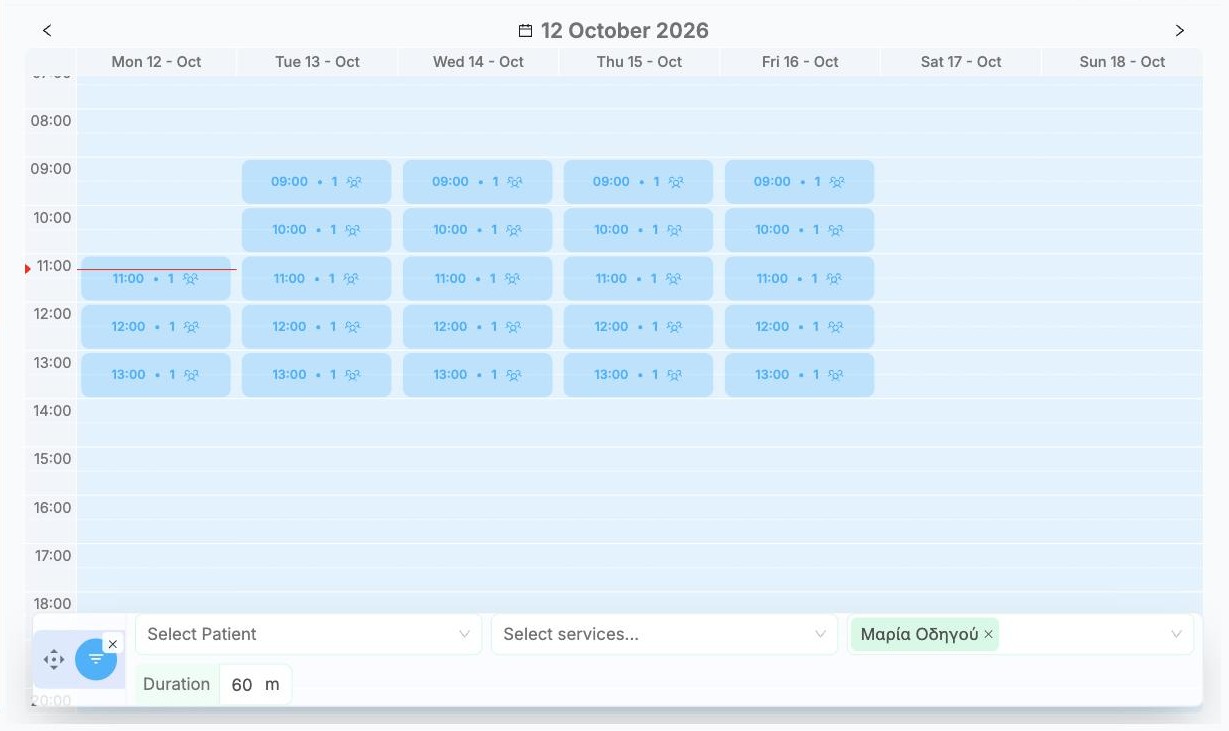
Open Availability at the bottom of the side menu. Each block shows a time and how many caregivers are free then.
Narrow it down with the bar at the bottom: a Patient, the services needed, specific caregivers, and the visit Duration.