Creating visits
In Alivio you don't create visits one by one. You create a service request for a patient: what they need, on which days, at what time. Alivio then generates all the visits for you.
The request screen has three parts that are the same whichever way you build it:
- Request (left): what you are selling, built in one of three ways
- Visits (right): every visit the request will create, so you can check and adjust them
- Payment (below the request): how and when the patient pays
Start a new request
Click New Request in the side menu. You can also click New Request on a patient's page, which fills in the patient for you.
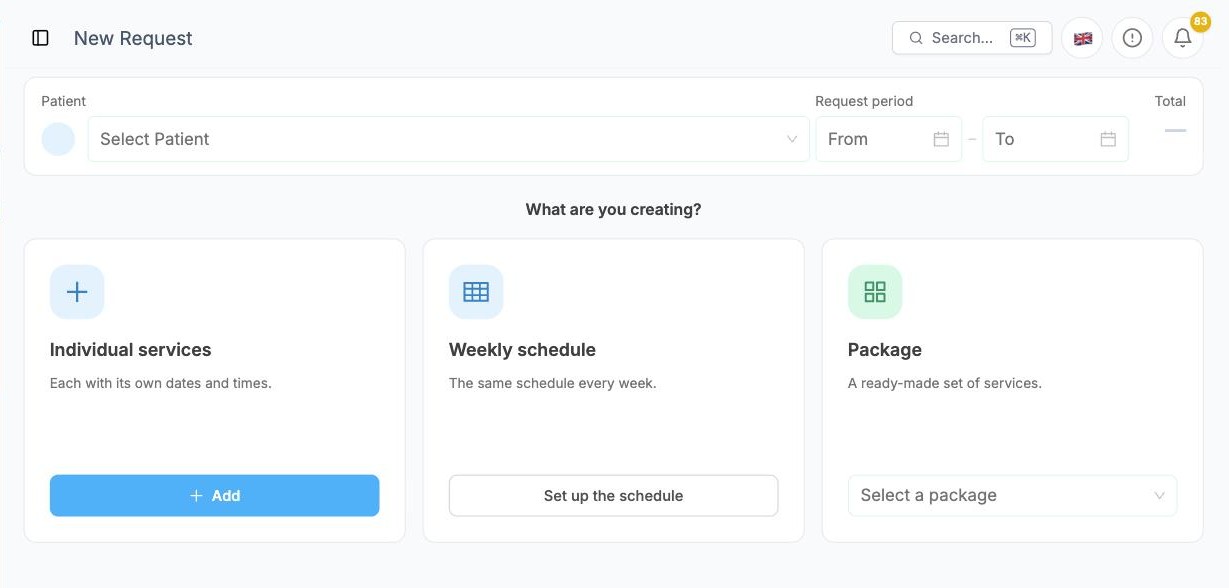
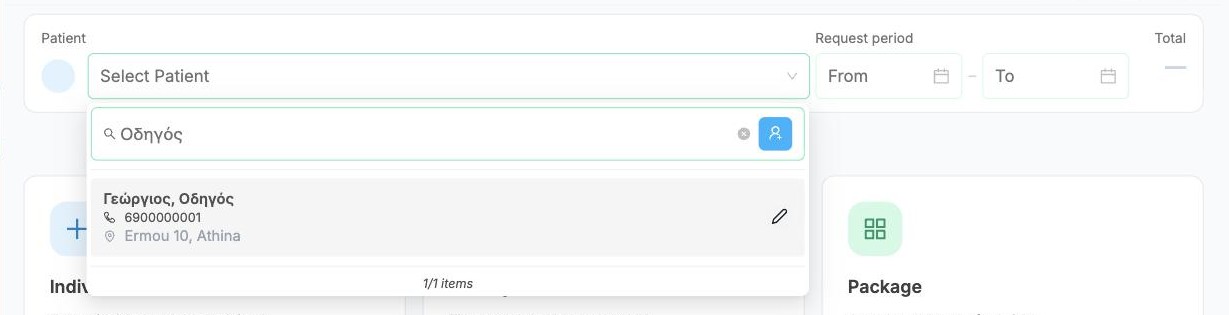
Click Select Patient and search by name or phone. Pick the patient from the list. Their address and phone appear below the name.
Under Request period, choose From and To: the first and last day of care. You can also leave it empty: it fills itself in from the dates you set below.
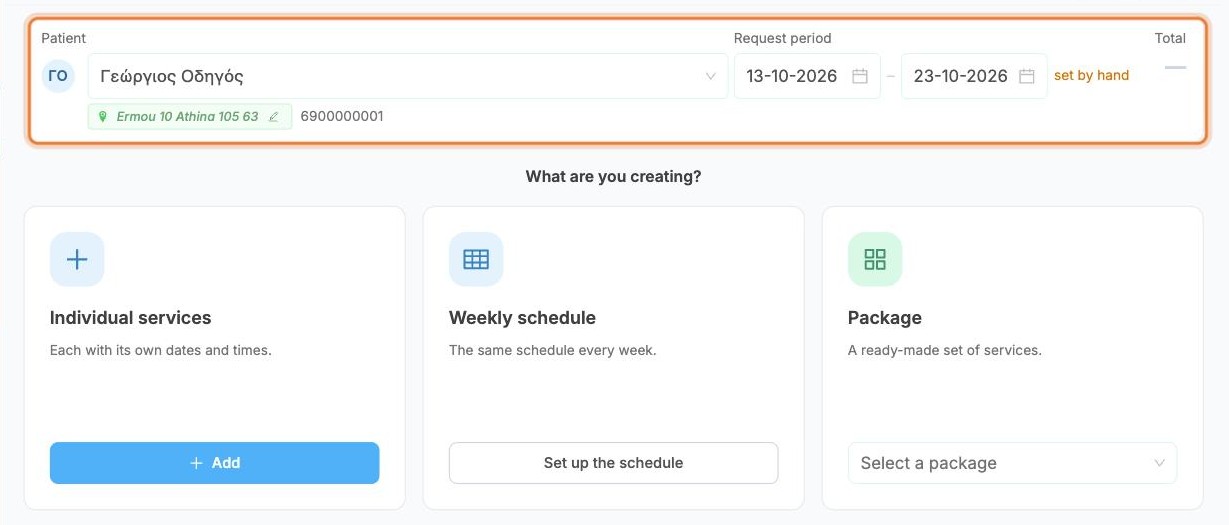
Choose how to build it
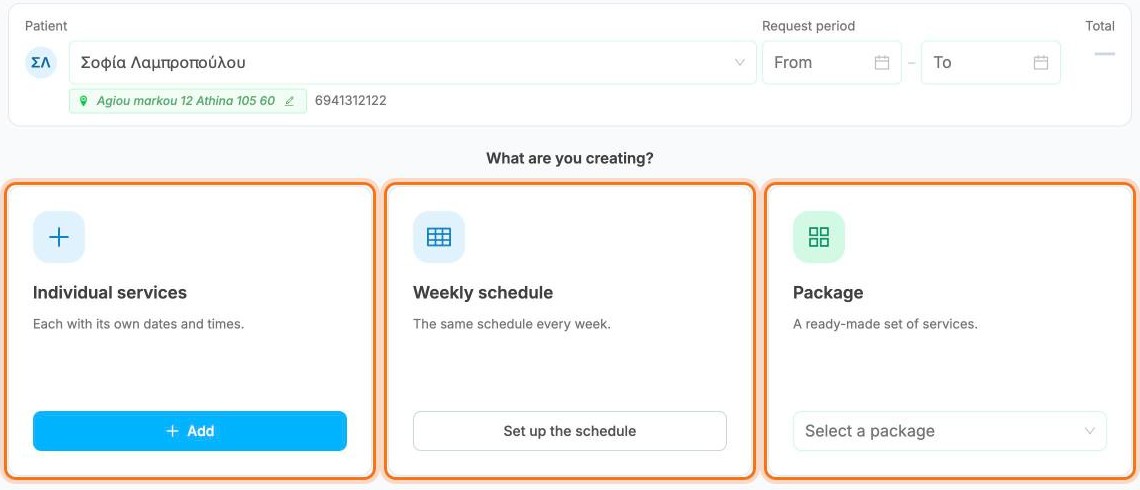
Under What are you creating? pick one of three ways. Each opens a different screen:
| Way | Use it when | Click |
|---|---|---|
| Individual services | a visit or series with its own date, time and repeat, step by step | Add |
| Weekly schedule | the same visits repeat every week, the most common case | Set up the schedule |
| Package | you sell one of your ready-made packages | Select a package |
You can mix them: Add service group adds another group of visits to the same request.
Way 1: Individual services
A short wizard of four steps. Each step closes when you click Next, and you can go Back at any time.
Date & time. Pick the Starts date and set the visit's start and end time. Add another time adds a second visit on the same day, for example morning and evening.
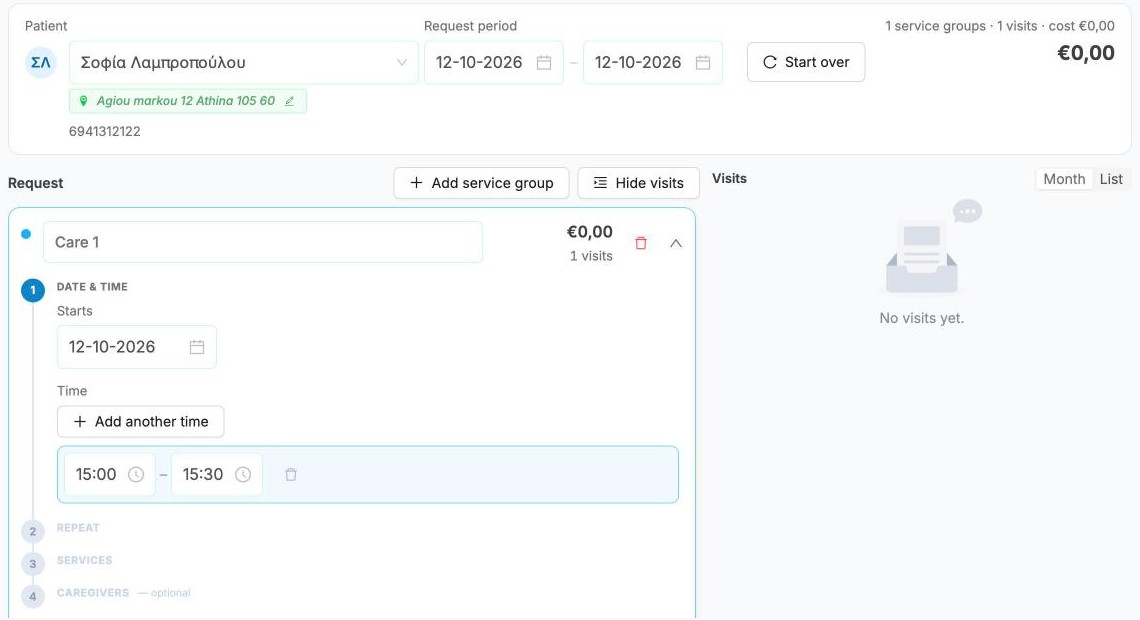
Repeat. Choose Once, Daily, Weekly or Monthly. Anything other than Once opens Edit repeat:
- Starts and Ends: the first and last day of the series
- Every: 1 = every week, 2 = every other week, and so on
- On: the days of the week (for Weekly)
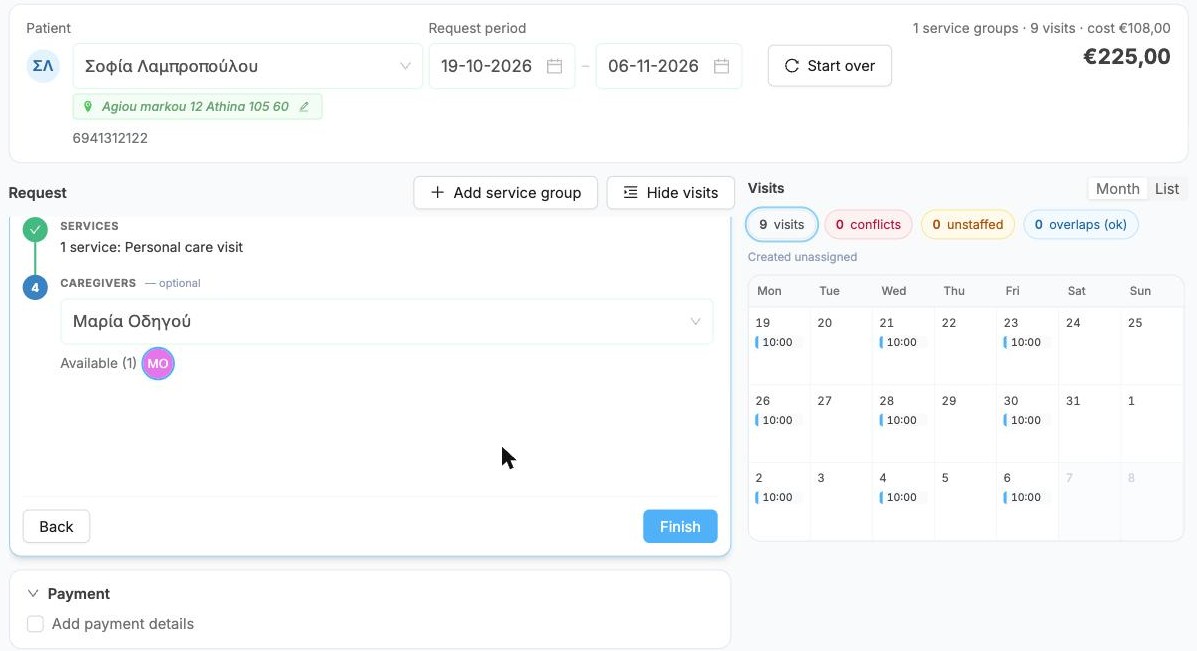
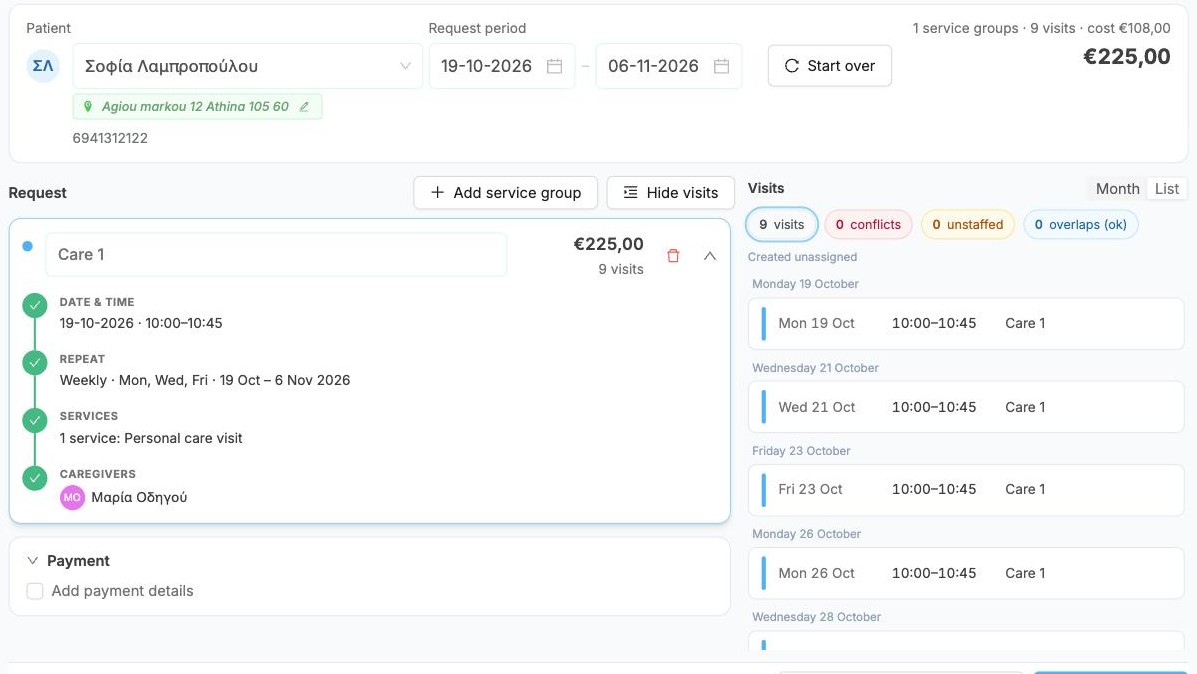
Click Save. The repeat appears as one line (for example Weekly · Mon, Wed, Fri · 19 Oct – 6 Nov 2026); click the pencil next to it to change it.
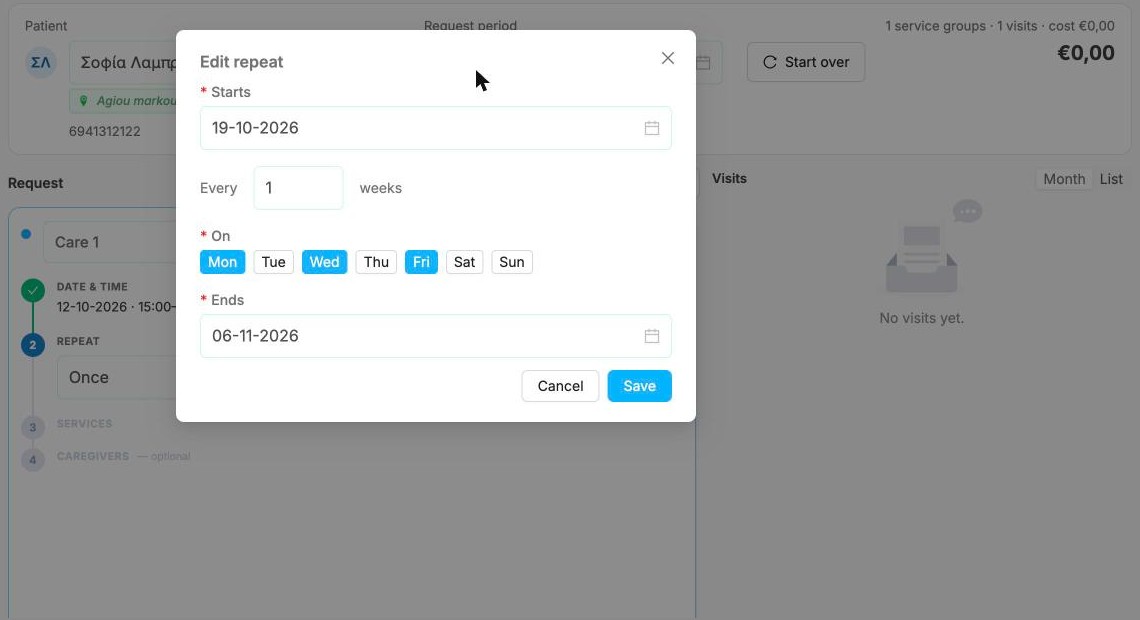
Services. Click Add service and pick what happens at each visit. You can change Qty, Cost and Price for this request only, and give a Discount %. The totals underneath are per visit.
If the services take longer than the time you set, an orange note says so (for example Needs 45m · scheduled 30m).
Caregivers (optional). Available shows the caregivers who are free for all the visits. Click an avatar to assign them, or pick from Assign a caregiver. You can also leave it empty and assign later on the Scheduling board.
Click Finish. The group closes into a short summary.
Way 2: Weekly schedule
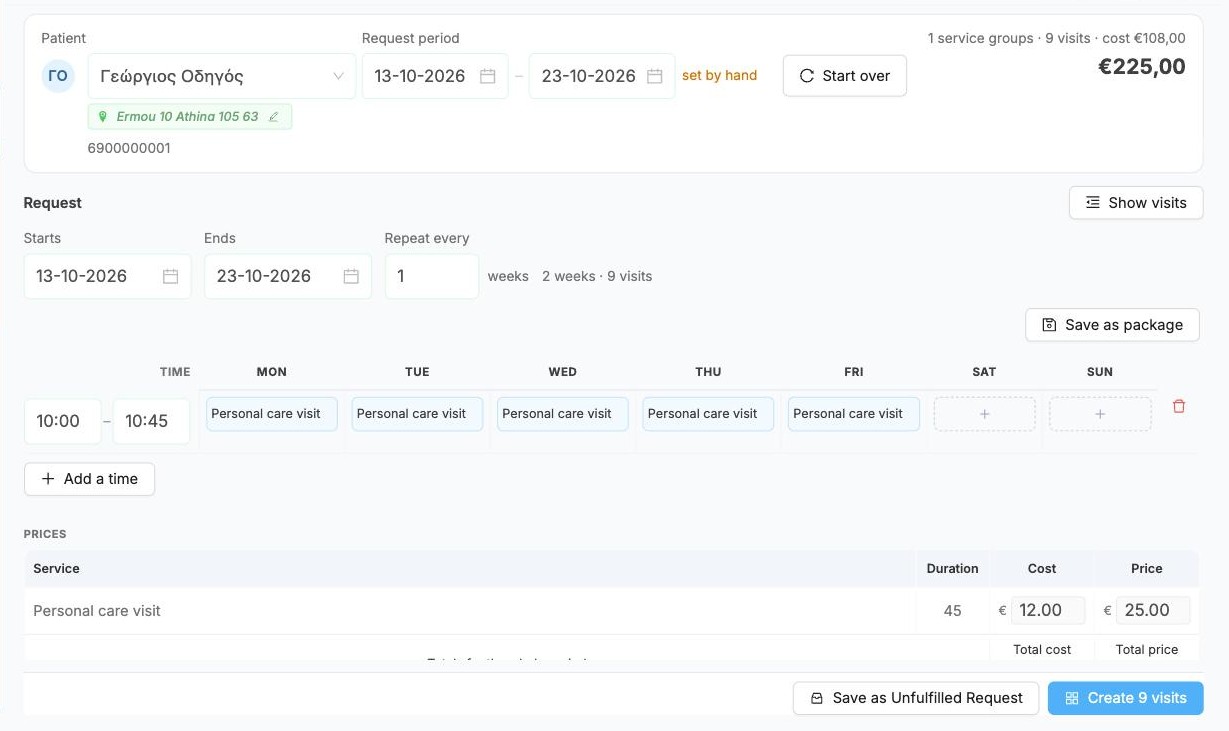
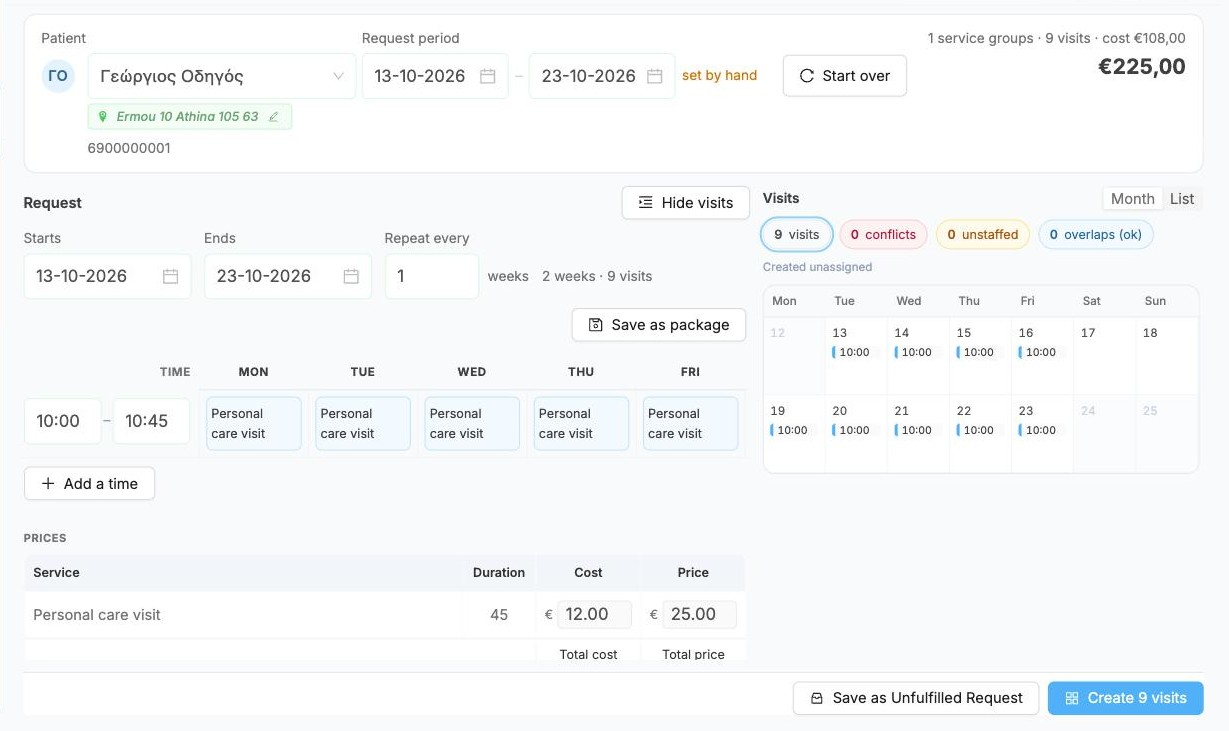
Check Starts, Ends and Repeat every (1 = every week). Each row of the grid is one visit time:
- set the start and end time on the left, for example 10:00 – 10:45
- click the + under a day to add what happens at that time
Use Add a time for a second visit in the same day, for example an evening visit. Save as package keeps this schedule as a package you can reuse.
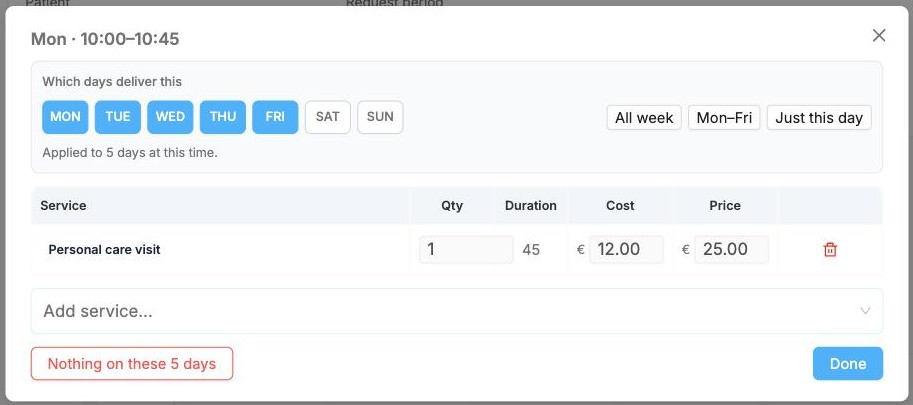
In the window that opens:
- under Which days deliver this, click Mon–Fri, All week or the individual days
- click Add service... and pick the service. You can change Qty, Cost and Price for this request only.
- click Done
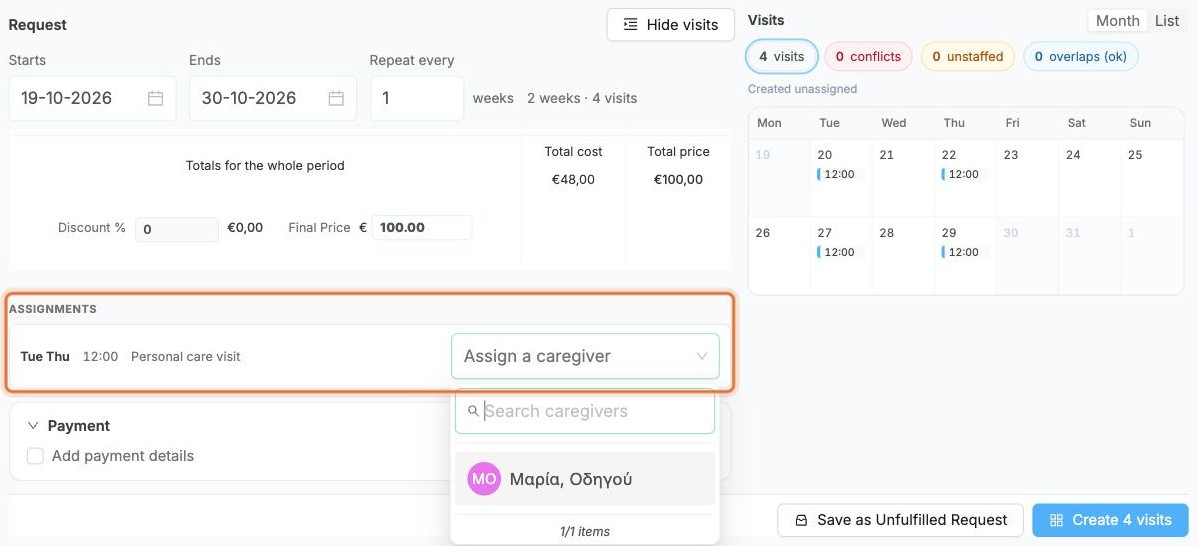
Assignments lists every time slot of the week (for example Tue Thu 12:00 Personal care visit). Pick a caregiver for each slot from Assign a caregiver. Only caregivers who are free for that slot are listed.
Way 3: Package
Click Select a package and pick one. Packages come in two kinds, and each opens differently.
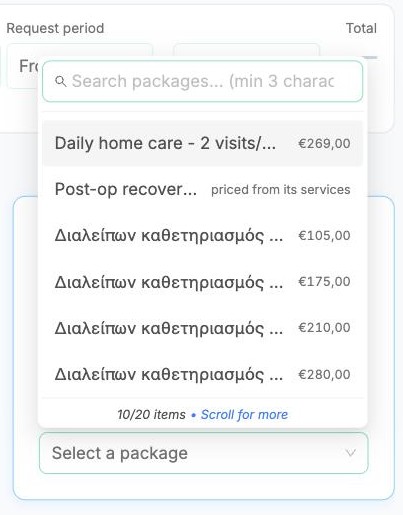
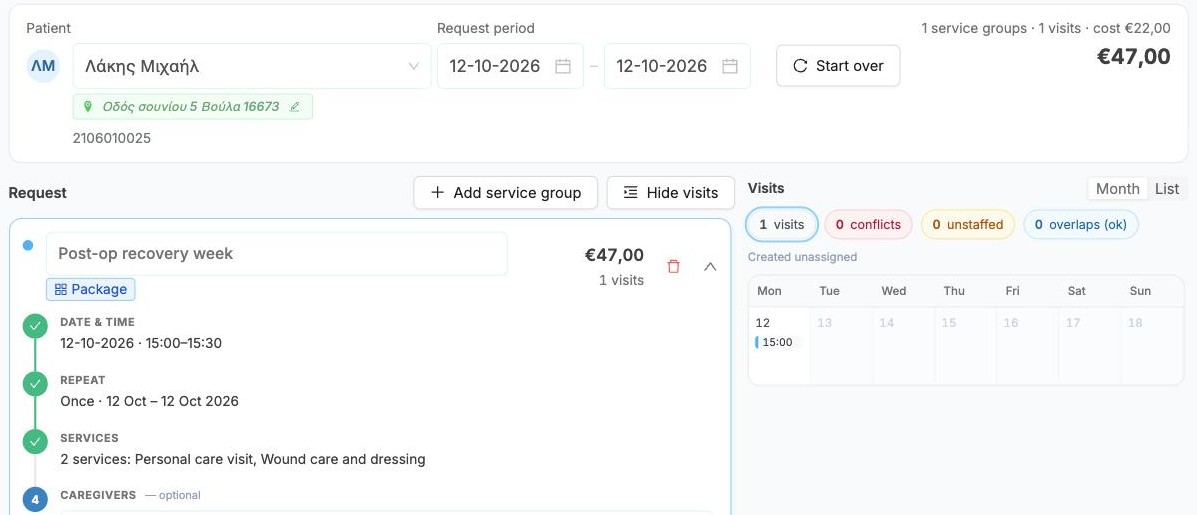
A set of services (for example Post-op recovery week) opens like Individual services, with the services already filled in and a Package tag. Set the date, time and repeat as usual.
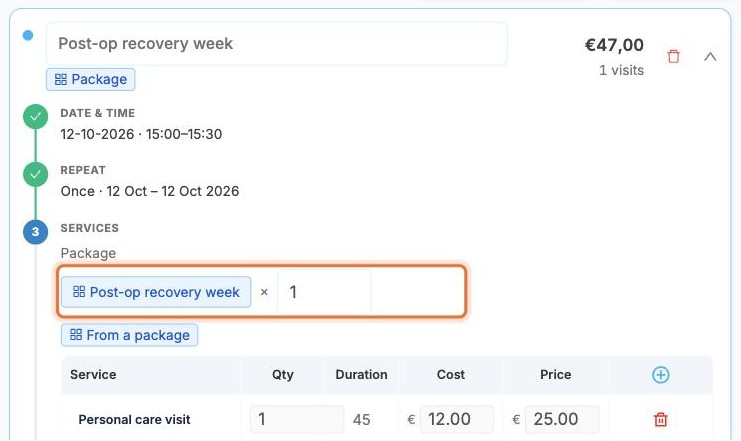
In the Services step, the number next to the package is how many packages are delivered at each visit. The services table below it shows what that includes.
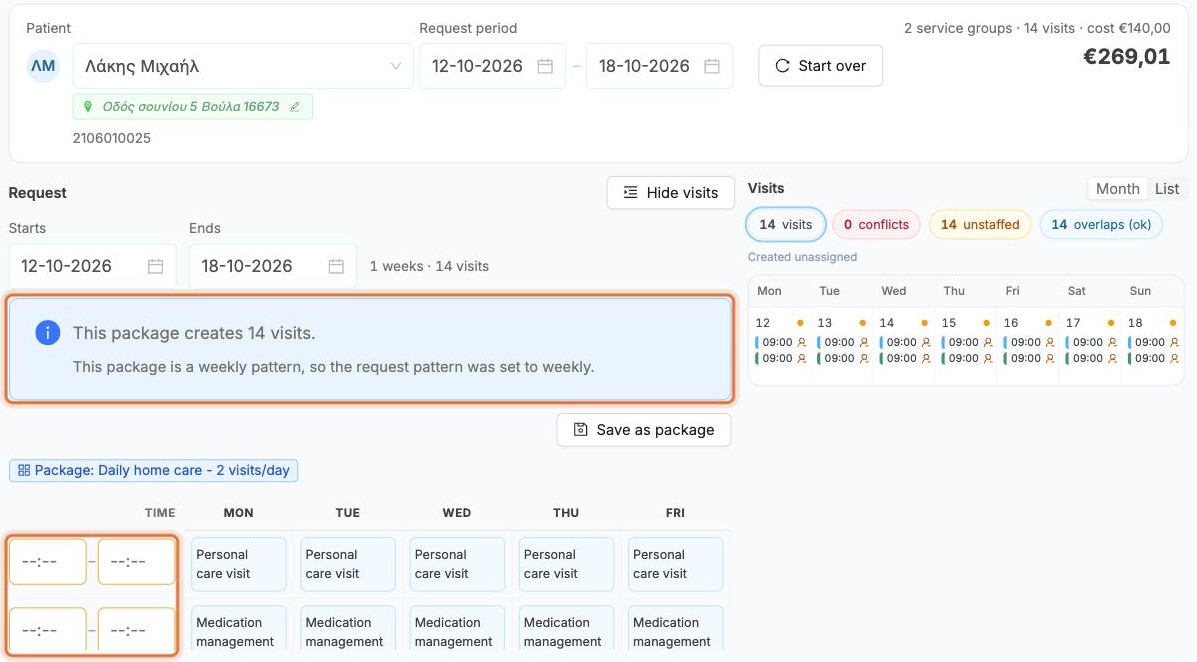
A repeating package (for example Daily home care - 2 visits/day) fills the weekly grid for you. A note tells you how many visits it creates.
The time boxes on the left are empty and outlined in orange: type a time for each row before you can create the visits. The days themselves come from the package.
Check the visits and change single days
The Visits panel on the right updates as you build. Use it to spot problems and to adjust single visits before anything is created.
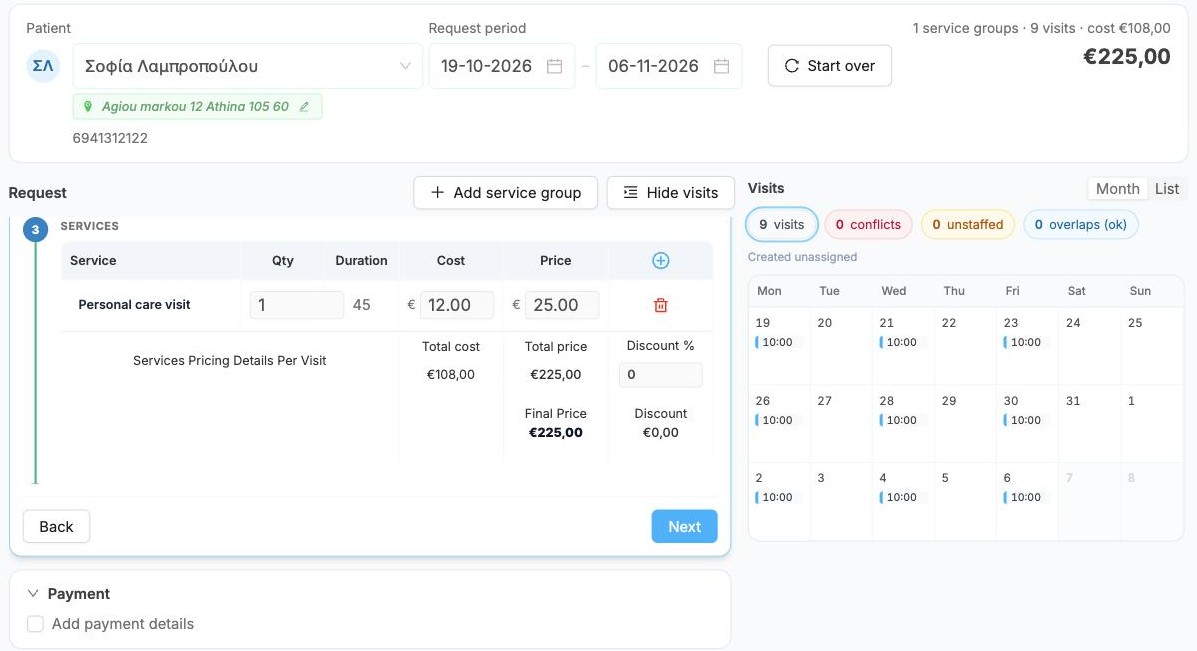
Month shows the visits on a calendar, List shows them one per row. The counters at the top warn you about:
- conflicts: clashes with visits the patient already has
- unstaffed: visits nobody is free for
- overlaps (ok): visits of this request at the same time, which is allowed
Click a counter to show only those visits. Hide visits gives the request more room.
In List, every visit has its own row with the day and time. Click a visit to open it.
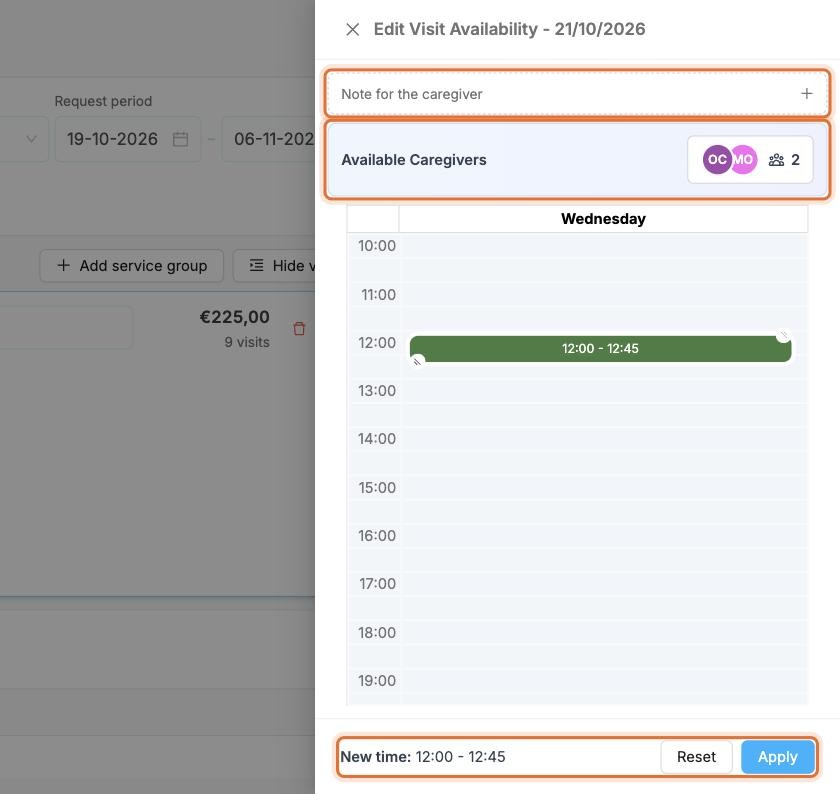
Edit Visit Availability opens on the right for that one day:
- drag the visit up or down, or drag its edge, to change the time. New time shows the result. Click Apply to keep it or Reset to undo.
- Available Caregivers shows who is free at the new time, so you can pick a time that suits someone
- Note for the caregiver adds a note to this visit only
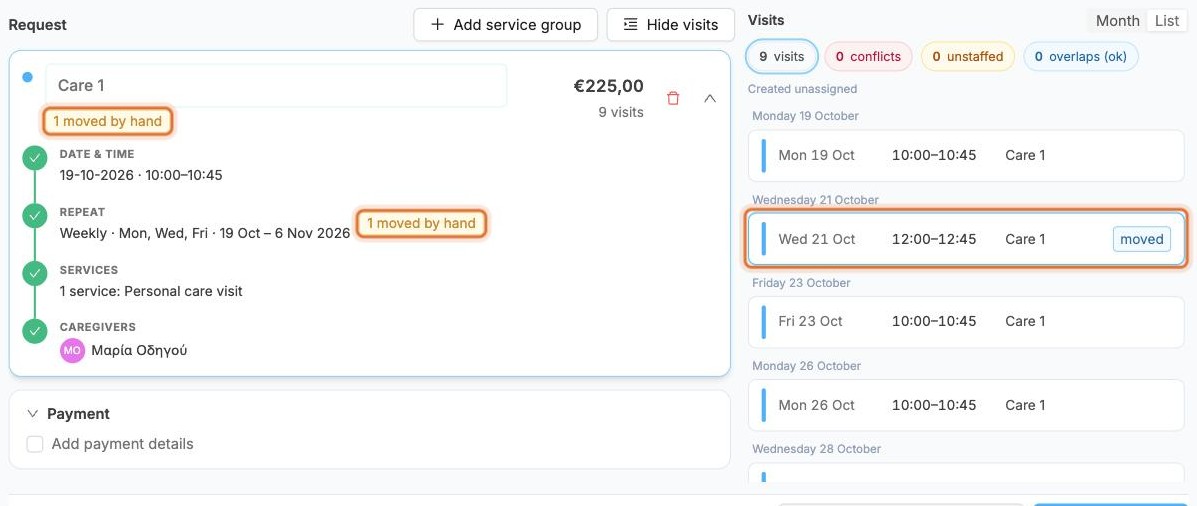
The visit is marked moved and the group shows 1 moved by hand. A moved visit is created exactly where you put it, and later changes to the group leave it alone. Click it again and use Undo move to put it back.
Moving a visit to another day
The panel changes the time on the same day. To skip a day or use different days, change the days in the repeat (or the grid). To move one visit to another date after the request is created, open that visit from Visits › Visit List or the Scheduling board.
Payment
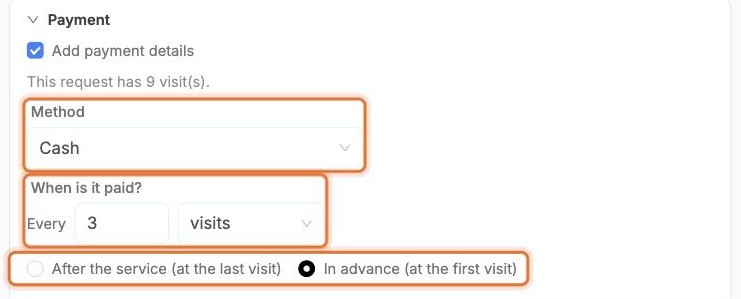
Tick Add payment details and set:
- Method: Cash or Card
- When is it paid?: Every N visits, days or months, or On a set day of the month
- After the service (at the last visit) or In advance (at the first visit) of each period
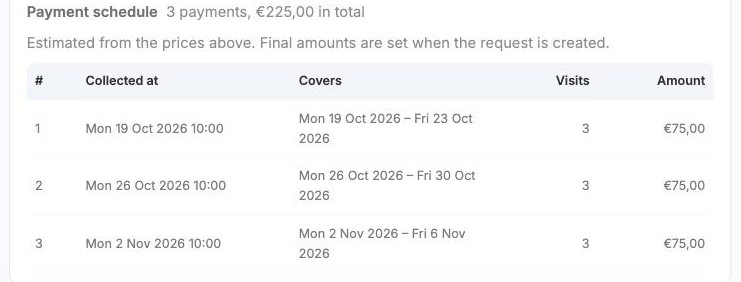
Payment schedule shows every payment before you create anything: when it is Collected at, which dates it Covers, how many Visits and the Amount. Here 9 visits paid every 3 visits in advance give 3 payments of €75.
The schedule is an estimate until you create the request. How payments are recorded is in Billing.
Create
At the bottom, click Create 9 visits (the number matches your request).
If you're not ready yet, Save as Unfulfilled Request keeps the request without creating its visits.

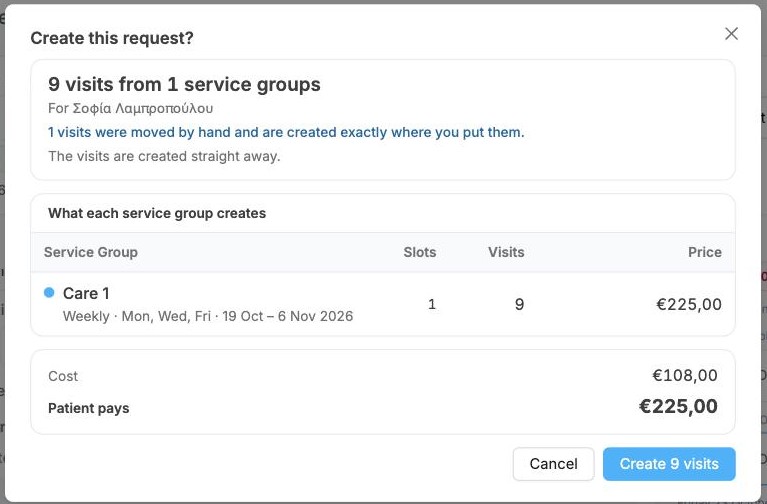
Check the summary: the visits per service group, any visits moved by hand, the cost and what the Patient pays. Confirm with Create 9 visits.
Conflicts
If the new visits clash with visits the patient already has, the confirmation window says so in red. The visits are still created, so check the calendar first if that isn't what you want.
Find the request and its visits
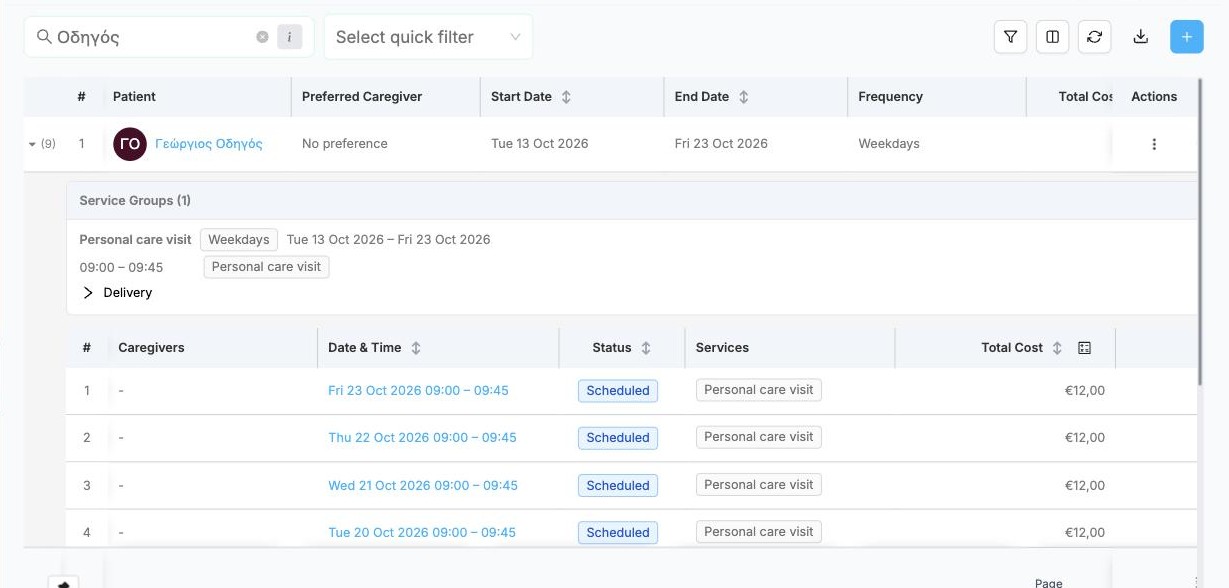
Open Visits › Service Request List and search for the patient. Click the arrow at the start of the row to see the request's schedule and all its visits.
To change the request later, see Editing a request. Visits without a caregiver can be assigned on the Scheduling board.