
Editing a request
Plans change: a patient wants a later time, the care is extended, a package is added or the price changes. You don't delete and recreate the request. You edit it, and Alivio works out which visits to move, add or remove.
What never changes
A visit that is completed, in progress, cancelled, already charged or moved by hand is never moved or deleted by an edit. Before you save, Alivio lists these visits so you know what stays as it is.
At a glance
| I want to… | How |
|---|---|
| Change the time | Change the time on the left of the grid (or in the card) |
| Extend or shorten the care | Change Ends |
| Add a package | Add › Add package |
| Change the price or discount | Change Price or Discount %, then choose whether future visits follow |
| See or change payment terms | The Payment card |
| Stop one part of the care | Delete its service group, then choose delete or cancel |
| Stop all the care | ⋮ › Cancel request |
Open the request
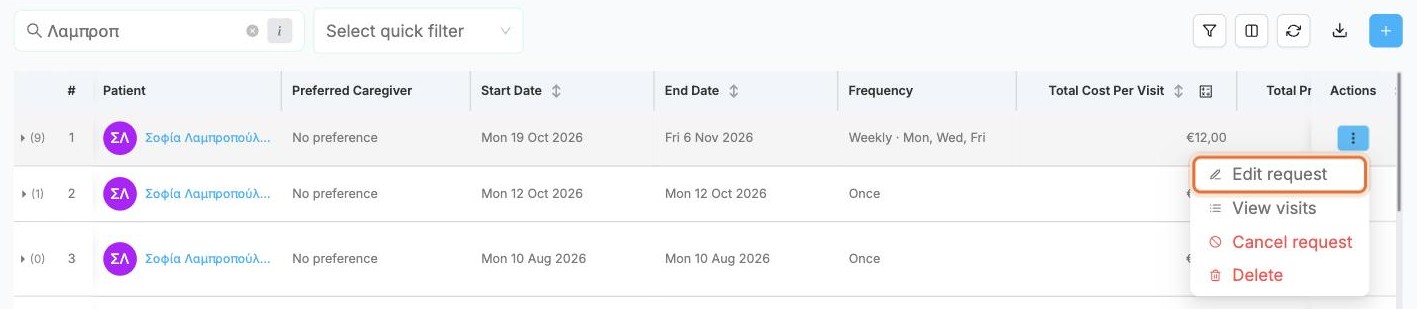
Open Visits › Service Request List and search for the patient. Click ⋮ at the end of the row and choose Edit request.
The same menu has View visits, Cancel request and Delete.
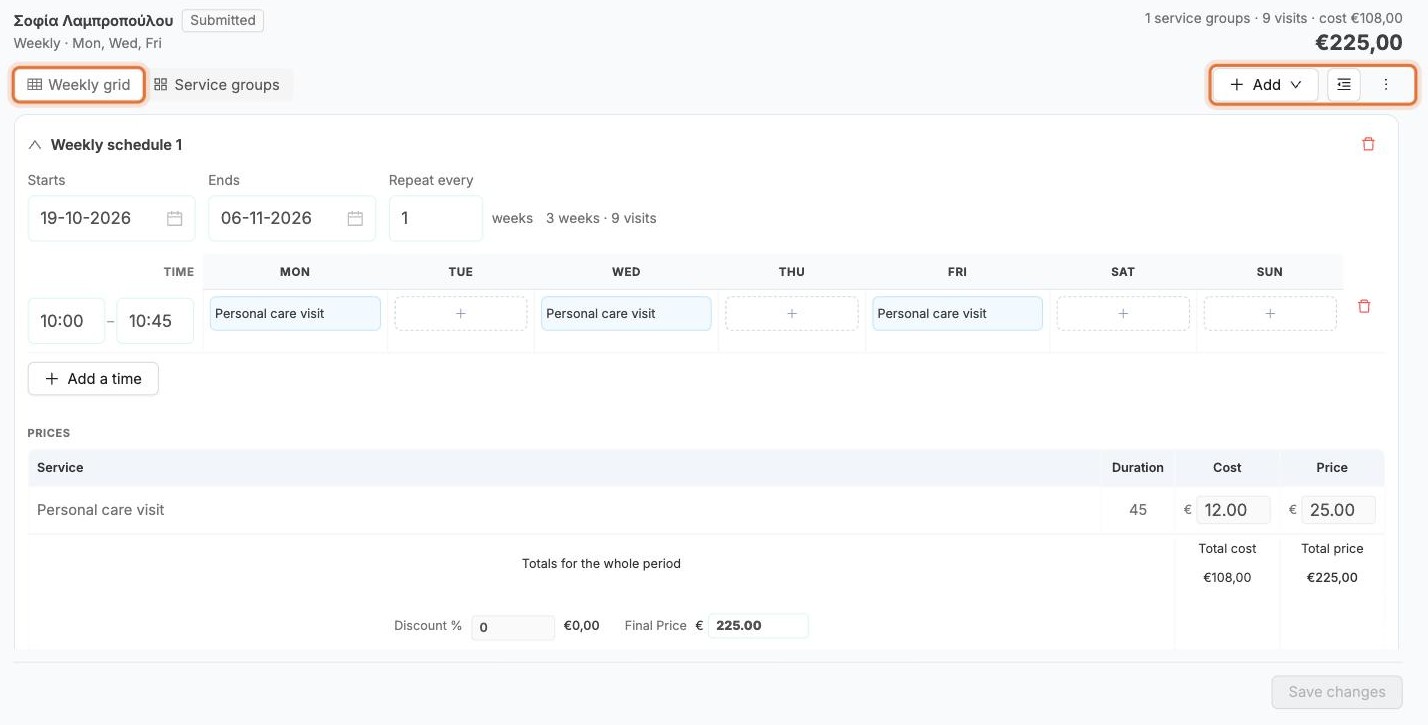
The edit screen looks like the one you created the request with:
- Weekly grid or Service groups switches between the grid and one card per service group. Both edit the same request.
- Add adds a service group, a package or a weekly schedule
- ⋮ holds Cancel request
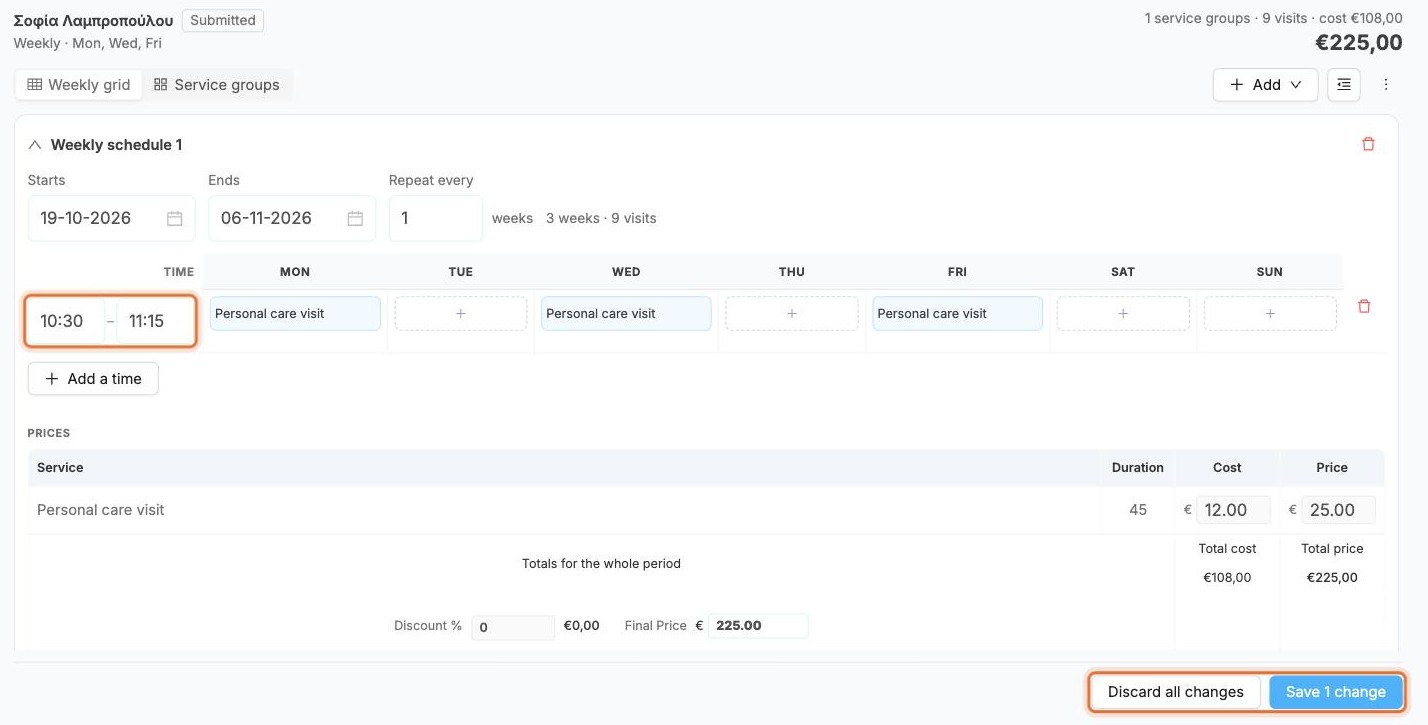
Nothing is saved while you edit. The bottom bar counts your changes: Save 1 change saves them, Discard all changes puts everything back.
Change the visit time
In the Weekly grid, change the start and end time on the left of the row, for example from 10:00–10:45 to 10:30–11:15. The bottom bar shows Save 1 change.
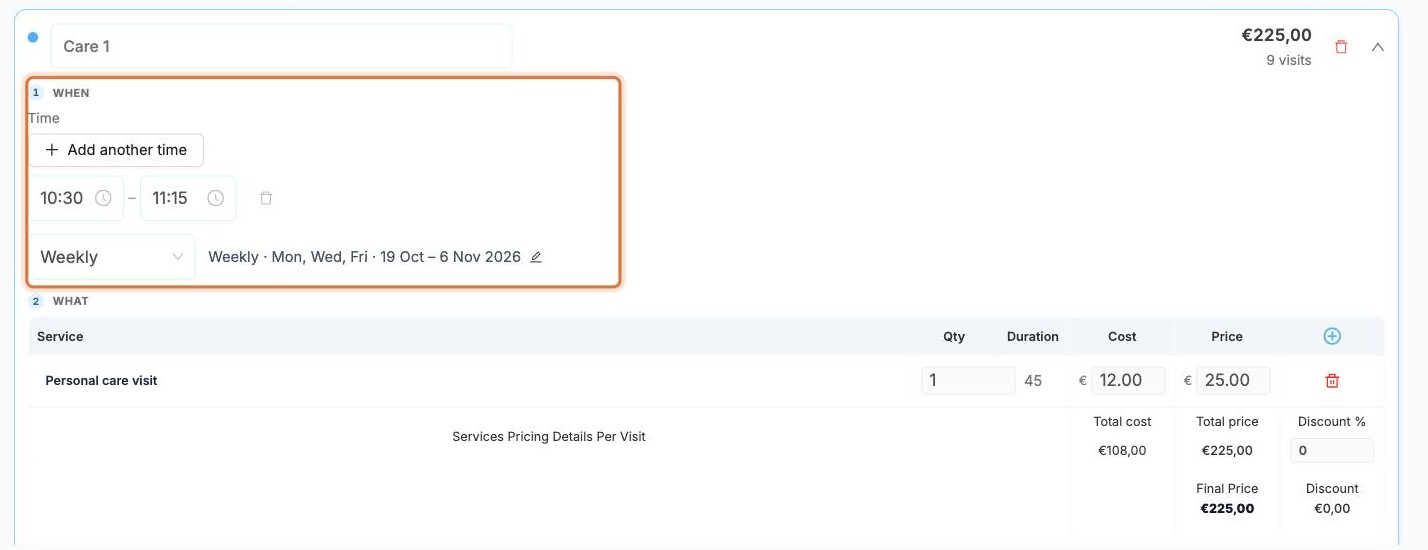
In Service groups view, the same settings are in the card under When: the time, and the repeat line with its pencil. What holds the services and prices.
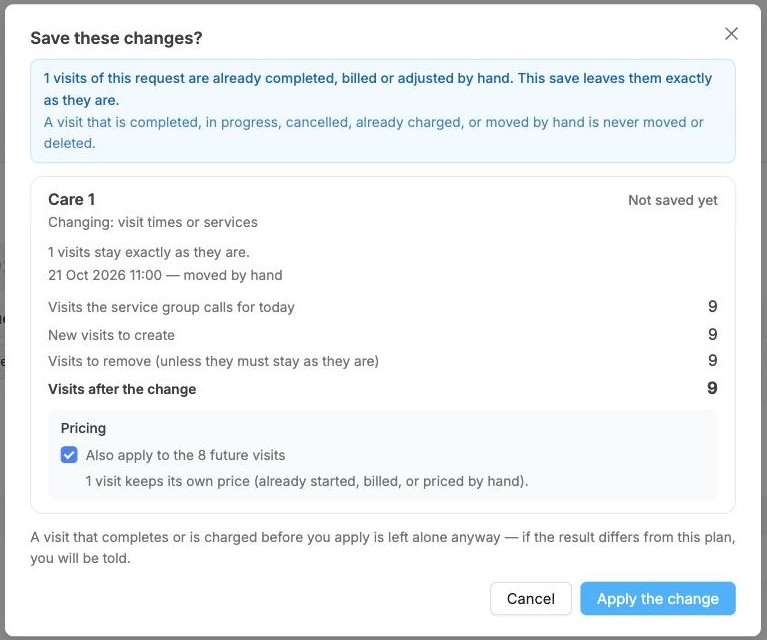
Click Save 1 change. Save these changes? explains exactly what will happen before anything does:
- the blue box lists visits that stay exactly as they are, here one visit moved by hand
- New visits to create, Visits to remove and Visits after the change
Click Apply the change. The future visits move to the new time, and their caregivers keep their assignment.
Extend or shorten the care
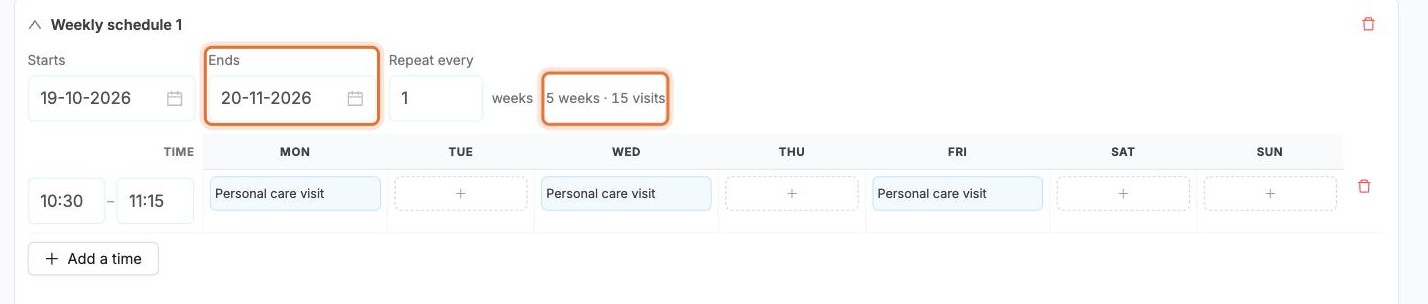
Change Ends, for example from 6 to 20 November. The count next to it updates straight away: 5 weeks · 15 visits.
To end the care earlier, move Ends back instead.
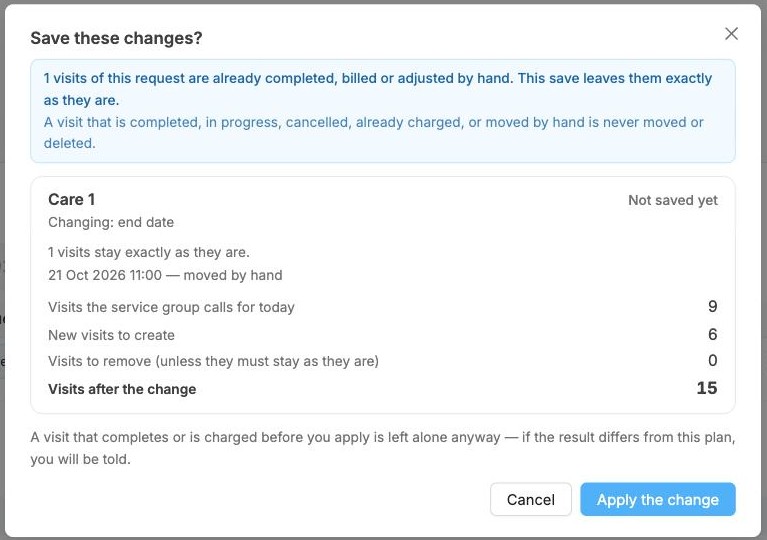
The save window shows Changing: end date and 6 new visits to create, for 15 after the change. Visits that already exist are not touched.
Add a package
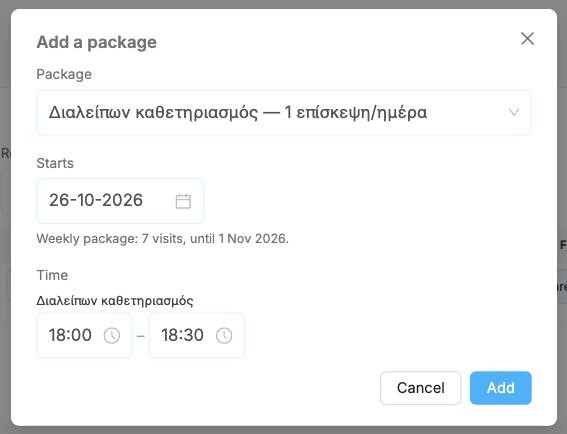
Click Add › Add package. In Add a package:
- pick the Package
- choose when it Starts. Underneath, Alivio says what that means, for example Weekly package: 7 visits, until 1 Nov 2026.
- type the Time for each visit of the package
- click Add
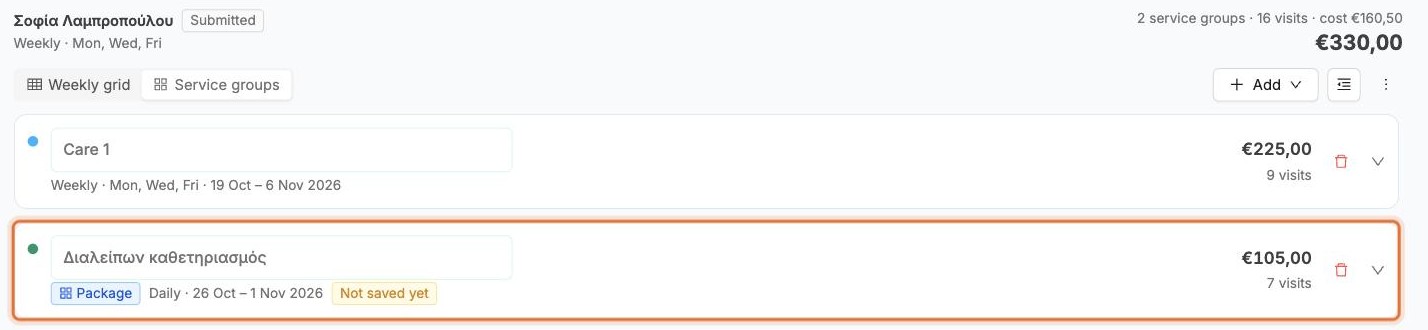
The package appears as a new service group marked Not saved yet, and the totals at the top already include it. Save as usual: the window says A new service group — it creates the visits its card describes.
Change the price or discount
Change the Price (or Cost) of a service, or the Discount %. Final Price and the total at the top update as you type.

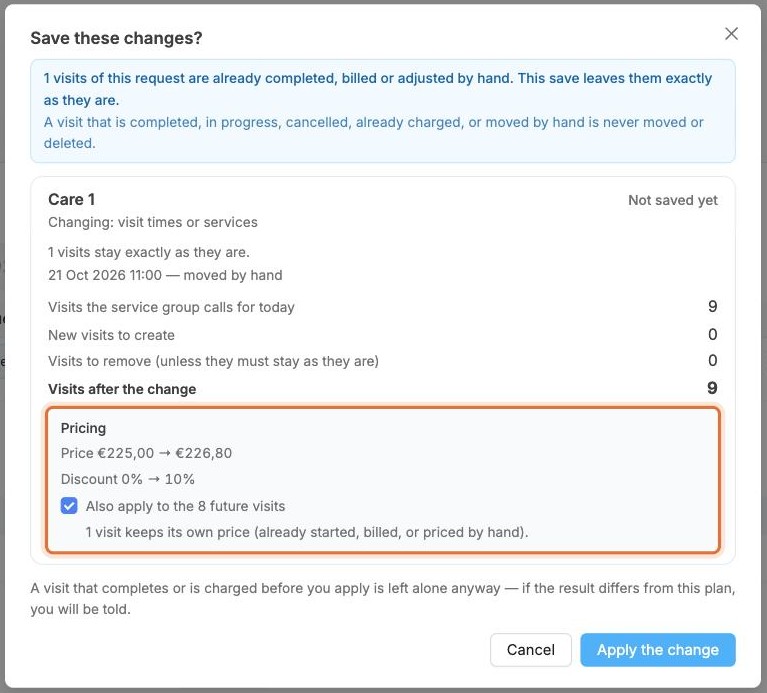
The save window has a Pricing section with the change, for example Price €225,00 → €226,80 and Discount 0% → 10%.
Also apply to the 8 future visits decides whether the visits that already exist get the new price:
- ticked: the future visits are repriced
- unticked: the visits already planned keep their current price
Visits that already started, are billed or were priced by hand keep their own price either way. The window says how many.
Payment terms
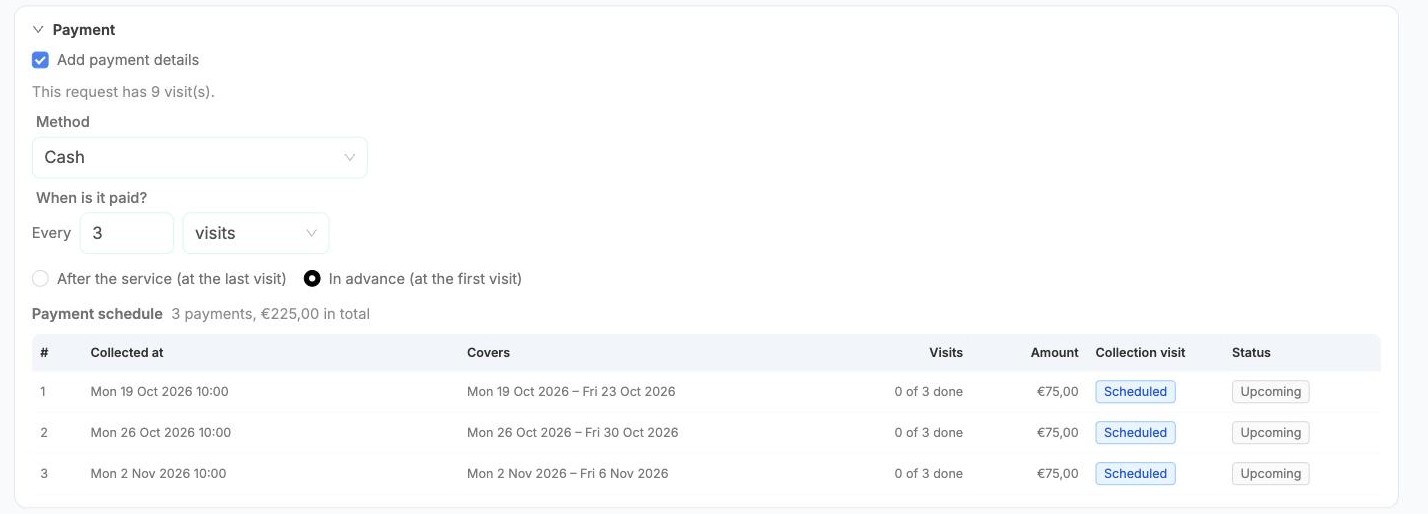
The Payment card (below the service groups) shows the terms the request was created with and its Payment schedule. In the edit screen each payment also has a Collection visit and a Status: Upcoming, Due, Part paid or Paid.
You can change the Method and When is it paid? here. The new terms are saved with your other changes.
Remove a service group
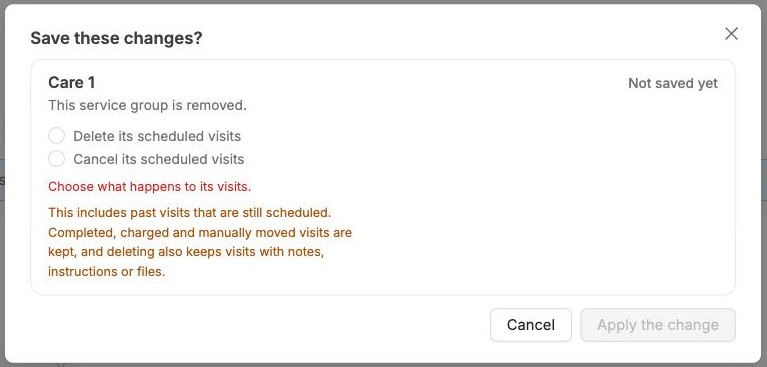
Click the red bin on a service group and confirm. When you save, Alivio asks what happens to its visits:
- Delete its scheduled visits: they disappear
- Cancel its scheduled visits: they stay in the list as cancelled
You must pick one before Apply the change works. Completed, charged and manually moved visits are kept either way. Deleting also keeps visits that have notes, instructions or files.
Cancel the whole request
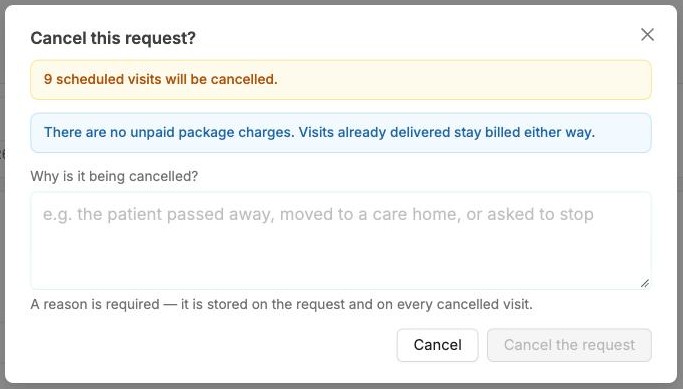
Click ⋮ › Cancel request (here or in the list). Cancel this request? shows how many scheduled visits will be cancelled and what happens to unpaid package charges.
Write the reason under Why is it being cancelled?. It is required, and it is stored on the request and on every cancelled visit. Click Cancel the request.
Cancel or delete?
Cancel when care stops: the history stays and the visits show as cancelled. Delete in the list menu is for a request created by mistake.