
Patients
Add a new patient with their contact details, home address and doctors.
Open the patient list
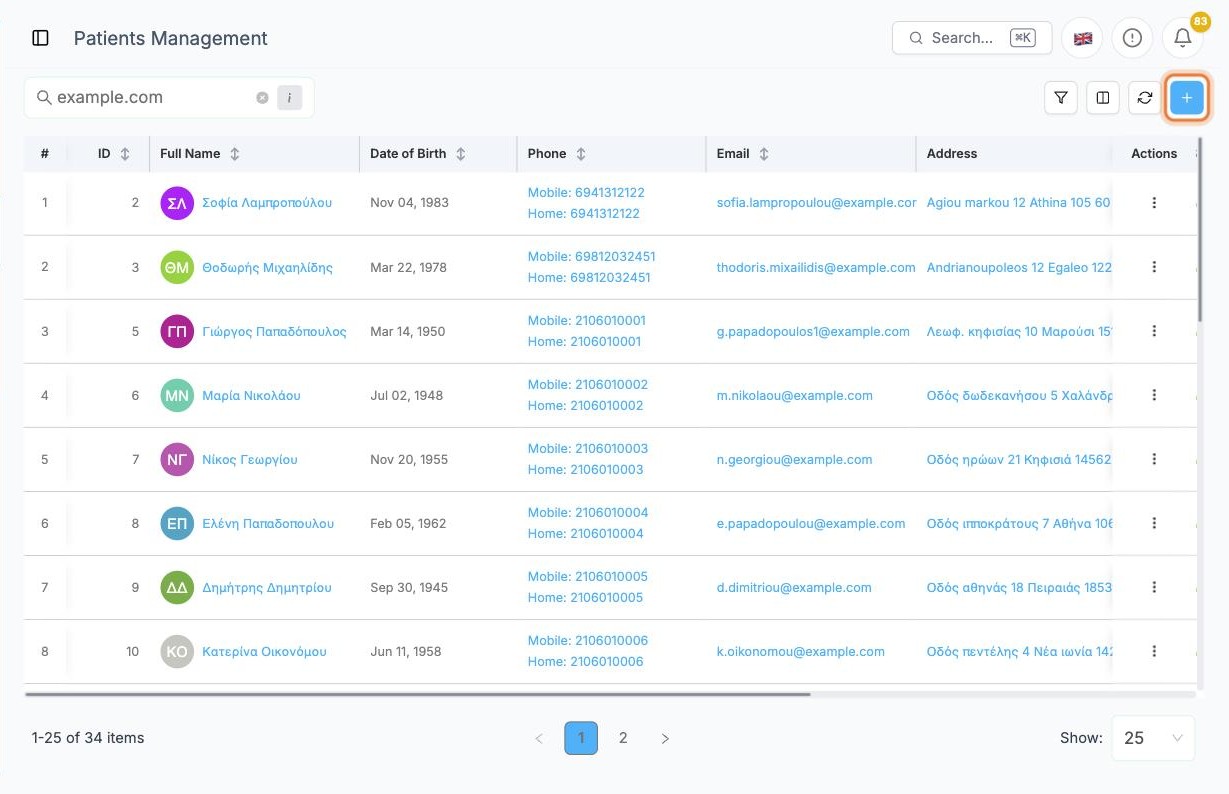
Click Patients in the side menu. To add someone new, click + at the top right.
Before adding a patient, search the list first, so you don't create a duplicate. See Working with lists.
Personal information
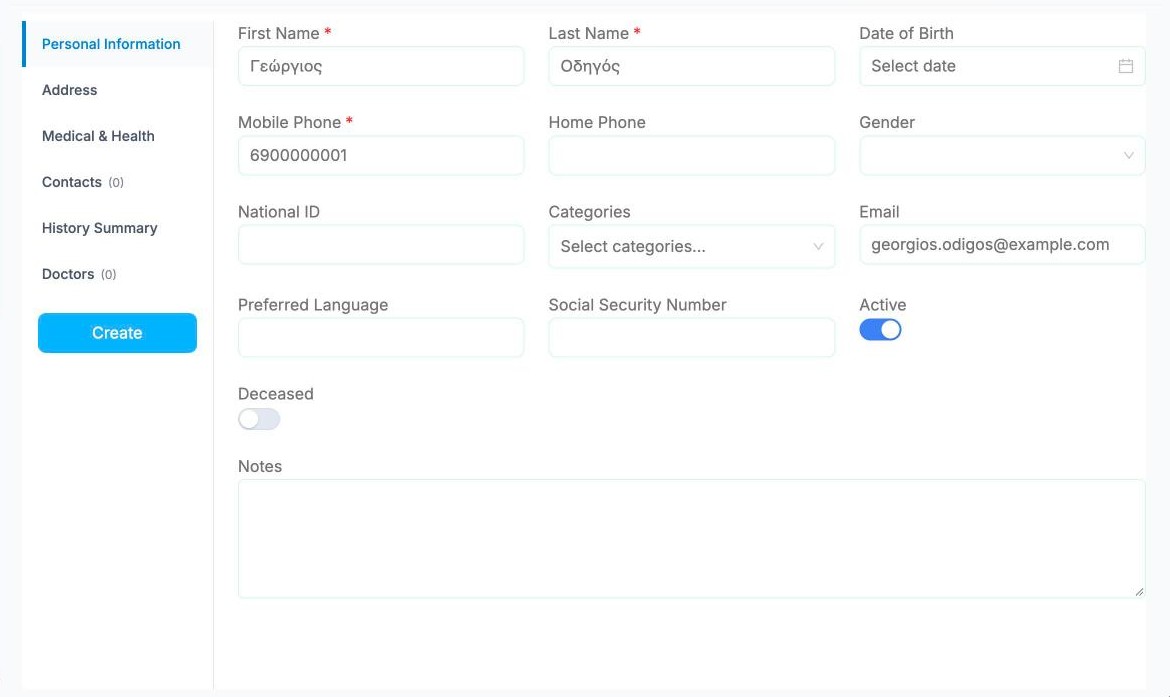
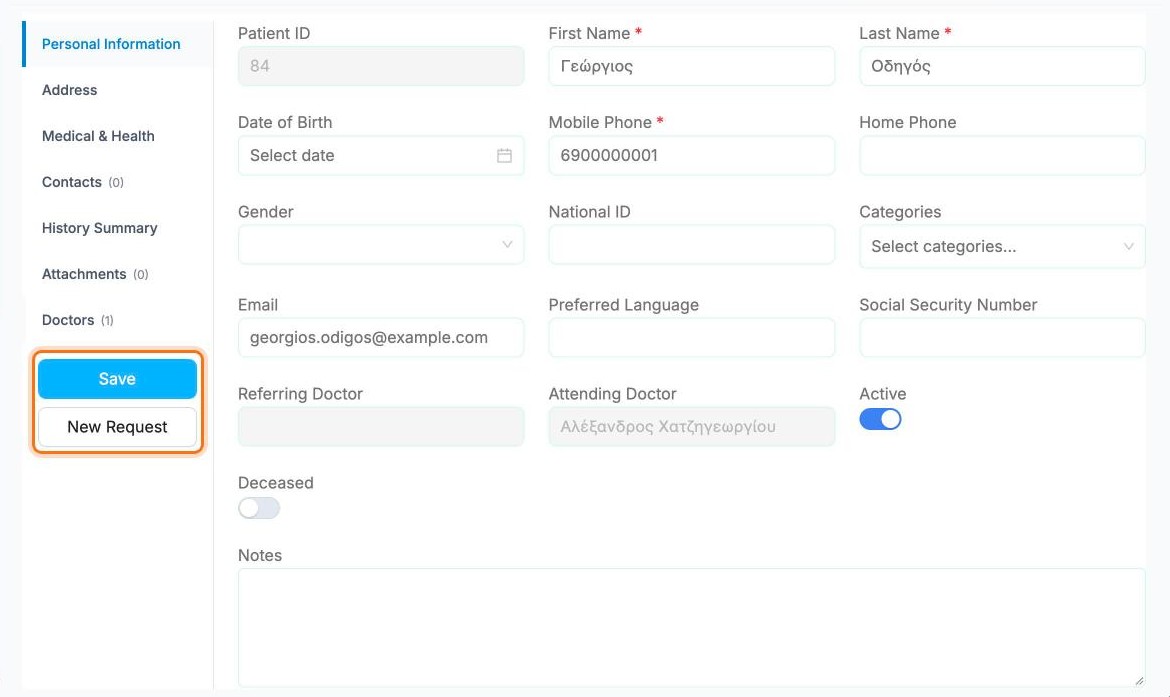
Create Patient opens on Personal Information. Fill in at least the fields marked with a red *:
- First Name and Last Name
- Mobile Phone
Add anything else you know: Date of Birth, Email, Social Security Number, Categories and so on. Leave Active switched on.
Address
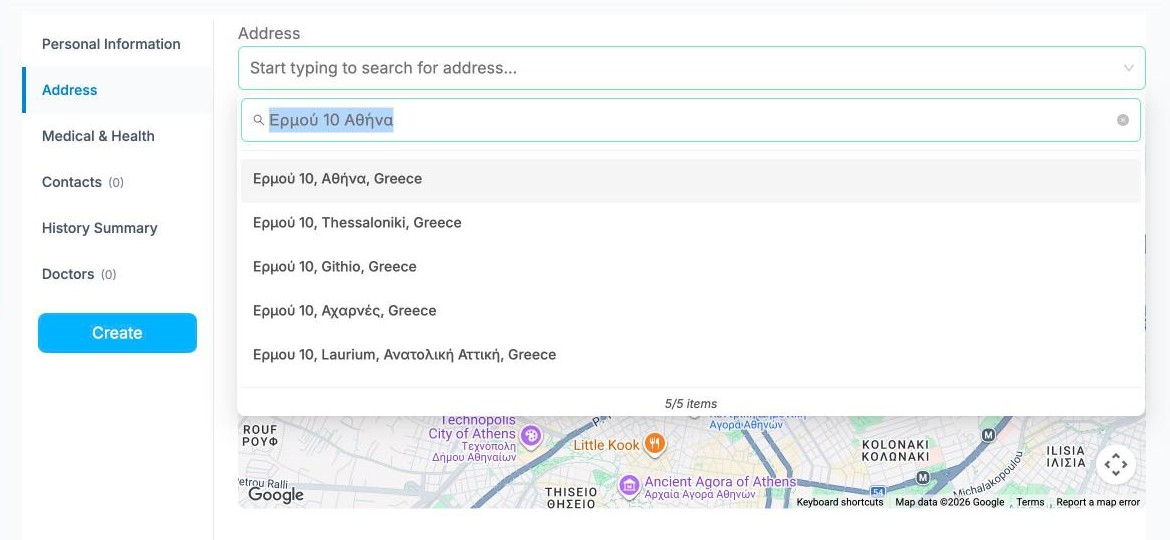
Open the Address tab. Click the address box and start typing the street and number. Pick the right result from the list.
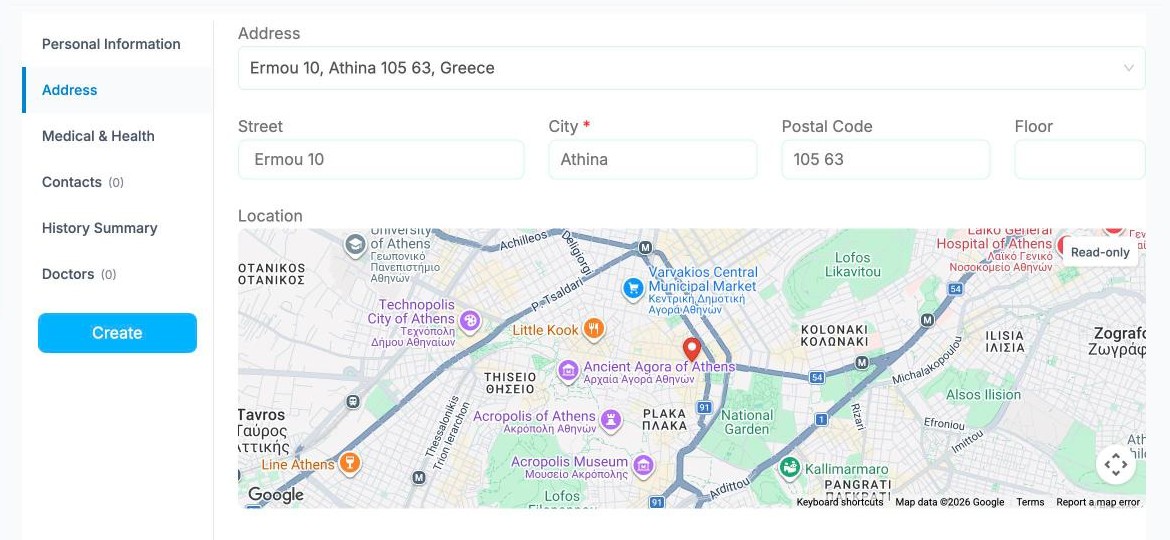
Street, City and Postal Code fill in automatically and the pin moves on the map. Add the Floor if you know it.
TIP
Caregivers use this address and the map pin to find the patient's home, so check that the pin is in the right place.
Doctors
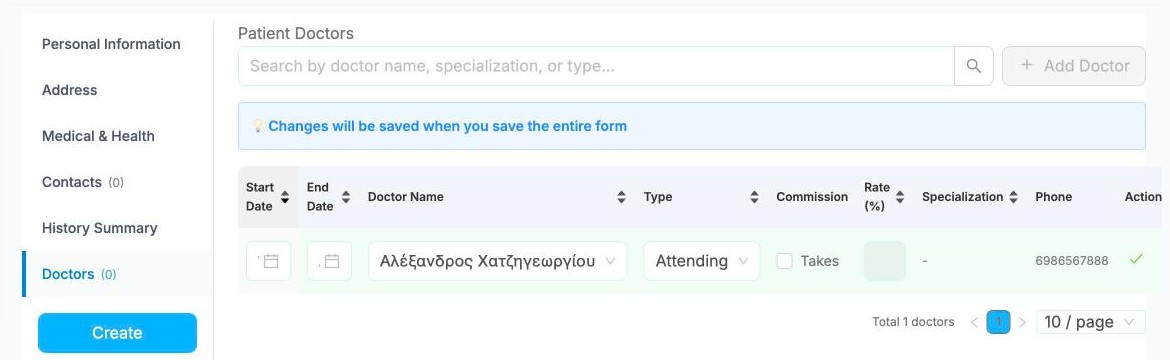
Open the Doctors tab and click + Add Doctor. In the new row:
- choose the doctor in Doctor Name
- choose the Type, for example Attending
- set a Start Date if you want, and an End Date if the doctor stops following this patient
- click ✓ at the end of the row
WARNING
The doctor is only linked once you save the whole patient. The blue note Changes will be saved when you save the entire form is a reminder.
Save
Click Create. The page becomes Edit Patient, and from now on the button is Save.
A new Attachments tab appears for documents. The New Request button starts planning visits for this patient: see Creating visits.
The patient dashboard
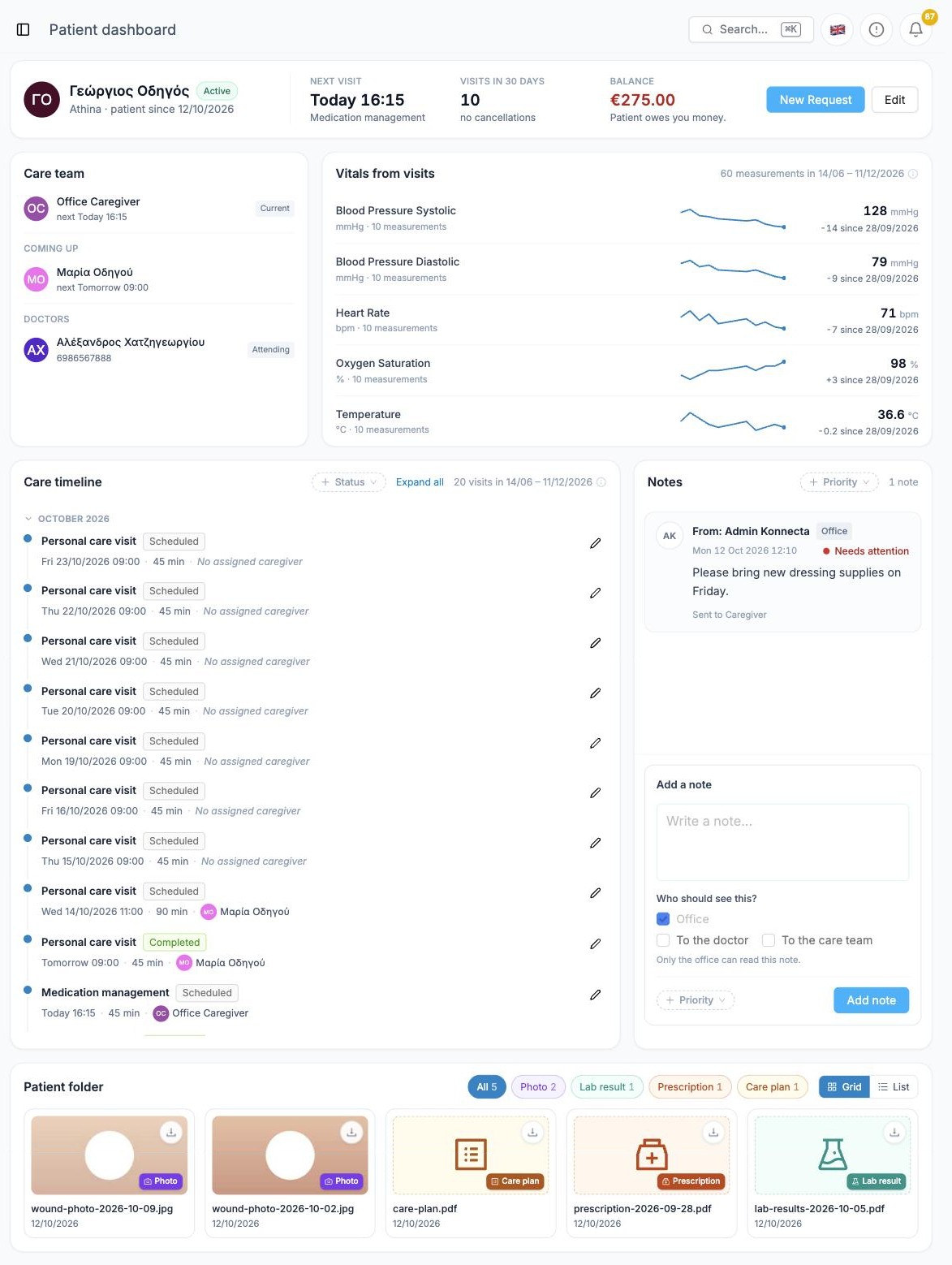
Everything about one patient on a single page: next visit, care team, balance, vitals, a timeline of visits, notes and files.
Open the dashboard
In Patients, click the patient's name. The Patient dashboard opens. From top to bottom:
- Top strip: status, Next visit, Visits in 30 days (and cancellations), Balance (what the patient owes, see Billing), plus New Request and Edit
- Care team: the caregivers who visit (Current, Coming up, Been before) and the patient's doctors
- Vitals from visits: the latest value of every measurement, a small trend line and the change since the first reading
- Care timeline: every visit by month, with status, caregiver and the vitals recorded
- Notes: notes about the patient, see Notes
- Patient folder: the patient's files
Vitals and their charts
Caregivers record vitals (blood pressure, heart rate, oxygen saturation, temperature, blood glucose and more) during each visit in the mobile app. They appear here automatically.
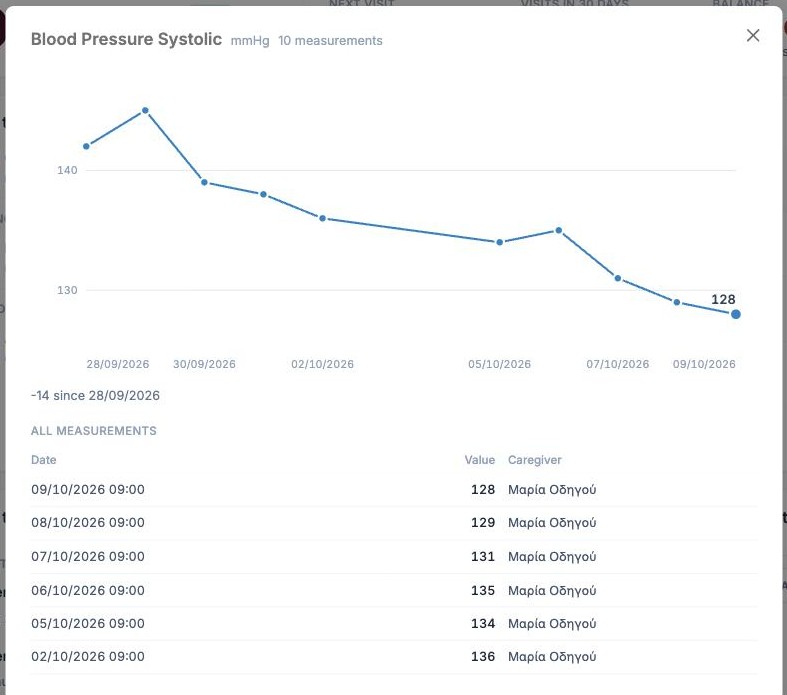
Click any vital in Vitals from visits to open its chart: every reading over time, the change since the first one, and a table of All measurements with the date and the caregiver who took it.
Care timeline and the visit panel
Care timeline lists the patient's visits by month. Filter it with Status, and use Expand all to open every month.
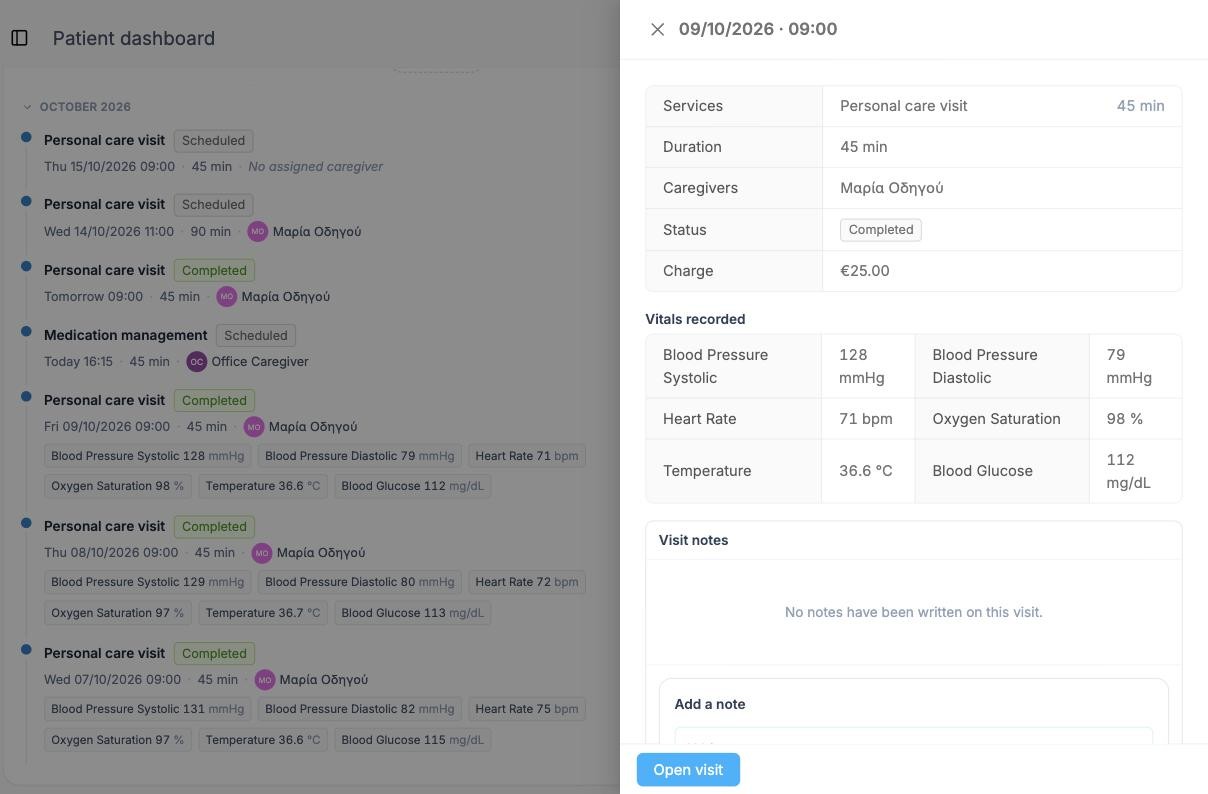
Click a visit to open its side panel: services, duration, caregivers, status, the Charge, the Vitals recorded at that visit, and the Visit notes (you can add one here too). Open visit opens the full visit page; the ✎ on the timeline does the same.
Files and attachments
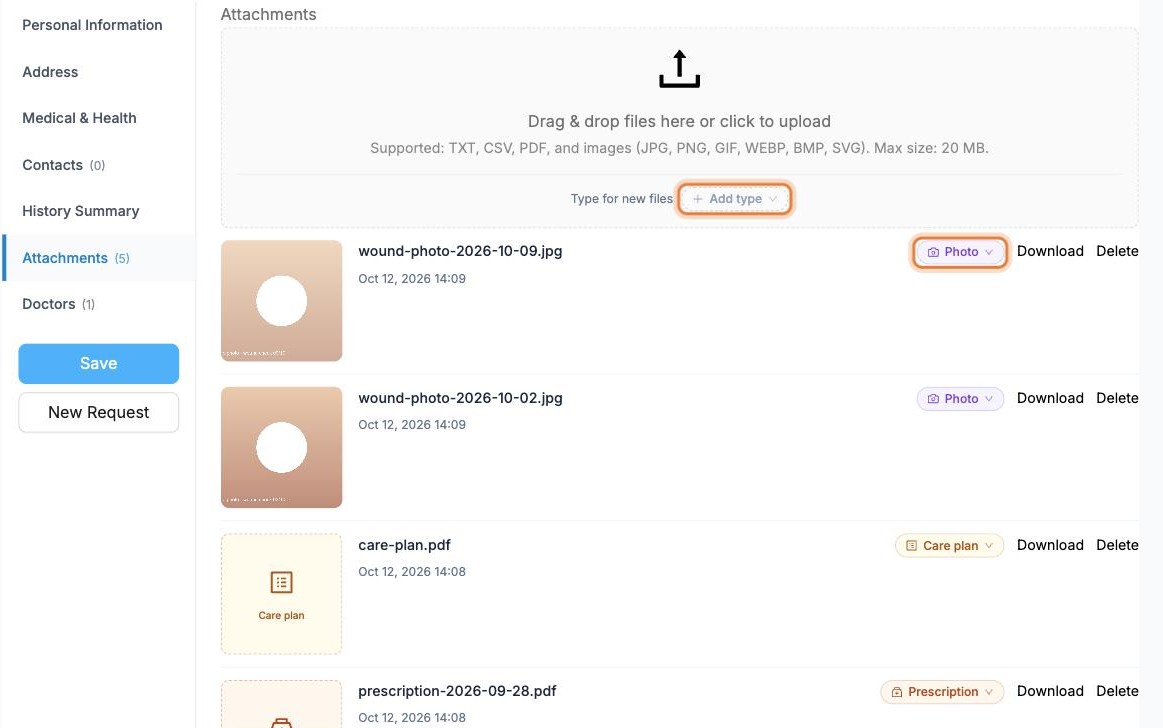
To add files, open the patient with Edit and go to Attachments. First pick a Type for new files (Visit summary, Photo, Lab result, Prescription, Billing document or Care plan), then drag files onto the box or click it. PDFs, images, TXT and CSV up to 20 MB are accepted, and each file is saved straight away.
You can change a file's type later from the tag next to it, and Download or Delete it.
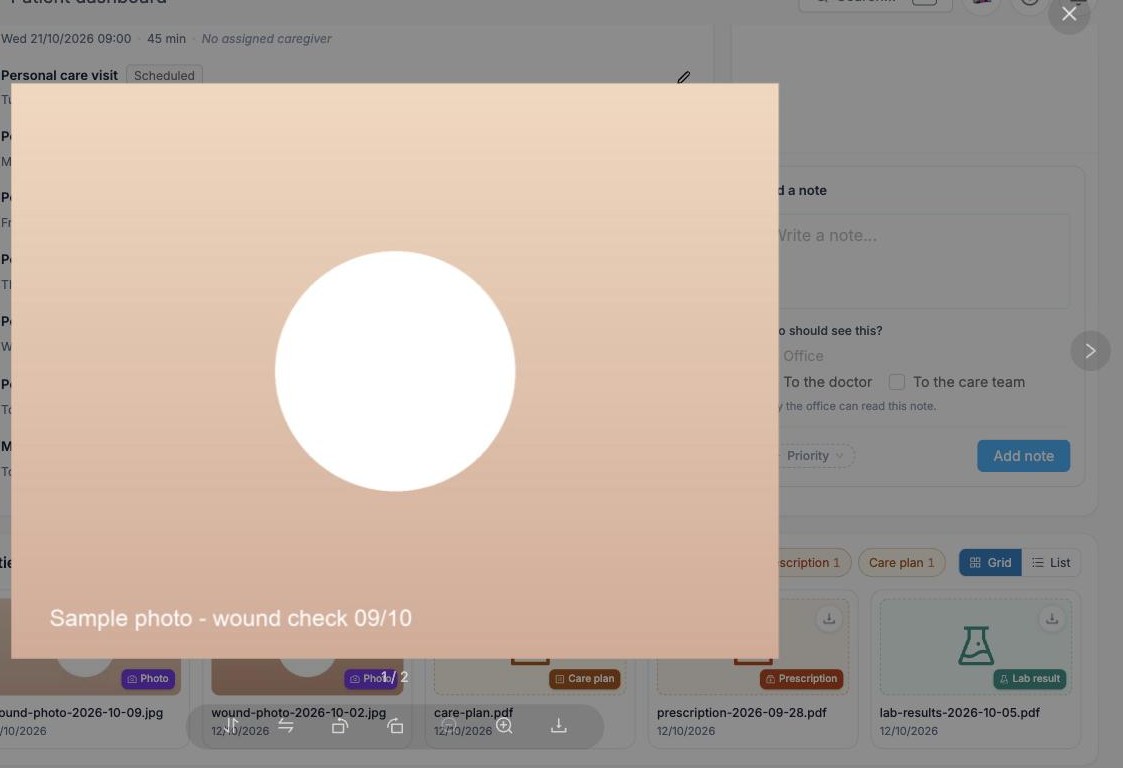
On the dashboard, Patient folder shows every file of the patient, including files caregivers attach to visits. The chips at the top filter by type (All, Photo, Lab result…), and Grid / List changes the layout. Each tile has a download button.

Click a photo to open it full screen. Use the arrows to go through the patient's photos, and the bar at the bottom to zoom, rotate or download.
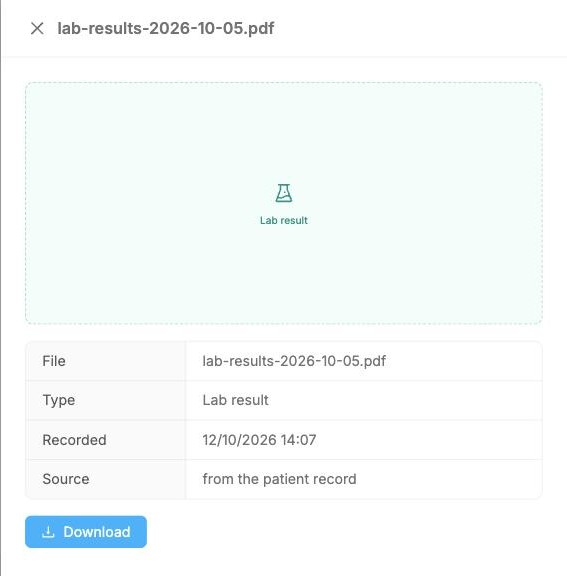
Click a document to open its side panel: file name, type, when it was recorded, where it came from (the patient record or a visit) and Download.
The dashboard shows a window of time
The timeline, vitals and counts cover a fixed period around today (the dates are shown next to each section). Hover the i for the exact range. Older or much later visits are in Visits › Visit List.
Edit a patient later
In the Patients list, click the patient's name to open their dashboard, then click Edit. Change what you need and click Save.